Bol.com to Zendesk: connect and set up
You create your own OAuth client for Schakel in Zendesk, connect Bol.com and Zendesk in Schakel, choose what becomes a ticket and review a dry run before anything is created. After that, unhandled returns and cancellation requests from Bol.com appear in Zendesk as tickets on their own. It takes about twenty minutes.
What you end up withBol.com returns and cancellation requests as tickets in your Zendesk, with the order data in ticket fields. Customer questions stay in the Partner Platform, with a workaround if you want them in Zendesk too.
- 01
What the connector does and does not do
Schakel checks Bol.com regularly and puts what needs your attention into Zendesk as a ticket: unhandled returns and cancellation requests from customers. If you also want a customer’s order history in Zendesk, you can have every new order created as a solved ticket (off by default). For each ticket Schakel adds the customer as a user in Zendesk, the order data in ticket fields and an overview with products, EAN, quantities and amounts in the first comment. When a return or request has been handled on Bol.com, an internal note is added to the ticket. What it cannot do: Bol.com does not release customer questions and messages through its API, so they do not arrive in Zendesk on their own (see the last step for the workaround). A reply to a buyer cannot be sent from Zendesk either: you reply in the Bol.com Partner Platform, and the first comment of every ticket contains a direct link there. Schakel never writes anything back to Bol.com and never sends anything to a buyer.
- 02
What you need
Three things. A Zendesk account with API access: every Zendesk Support or Suite plan works, the trial included. On the entry plans the API limit is low (around 10 requests a minute), so the first run may take place in parts. Someone with the Admin role in Zendesk, because only an admin sees the Admin Center and can create an OAuth client. And the API details of your Bol.com account: a Client ID and a Client Secret for the Retailer API, which you create yourself in the Bol.com Partner Platform (the next step). You do not need a Zendesk password or API token: you create an OAuth client in your own Zendesk and give Schakel only its client ID and secret.
- 03
Create your Bol.com API credentials
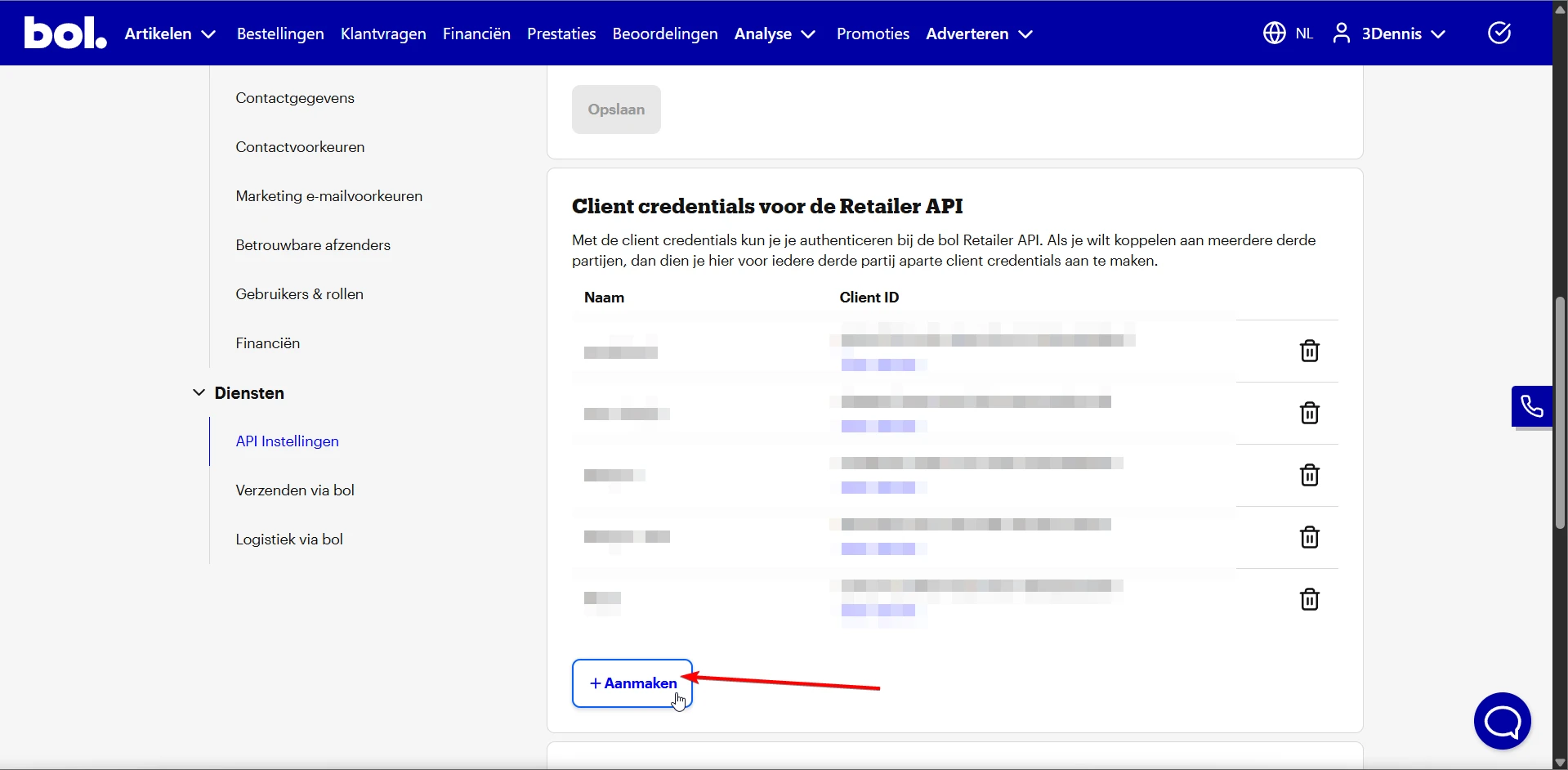
Log in to the Bol.com Partner Platform, click your name in the top right and go to Instellingen (Settings). Scroll to Diensten (Services), open API Instellingen (API Settings) and under Client credentials voor de Retailer API click + Aanmaken (Create). Give the key a recognisable name, for example Schakel Zendesk, save, and copy the Client ID and (via Toon secret) the Client Secret. Every screen is shown with a screenshot in the Bol.com guide. Schakel only uses the key to read.
Or go straight to https://partner.bol.com/sdd/preferences/services/api
- 04
Connect Bol.com in Schakel
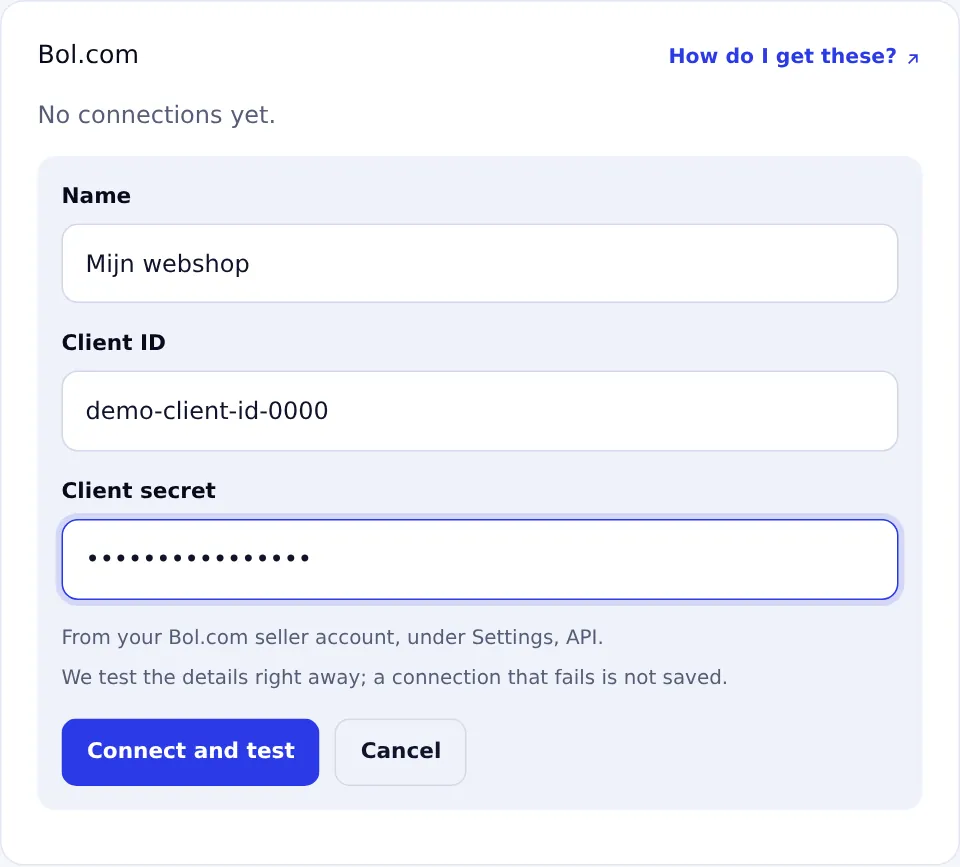
In Schakel, go to Connections (or click Go to connections in the first step of the setup). Click Connect an account under Bol.com, name the account, paste the Client ID and the Client Secret and click Connect and test. Schakel tests the details at once; a wrong connection is not saved. If you already connected Bol.com for another connector, simply pick that account again.
- 05
Create your own OAuth client in Zendesk (1/4): open the overview
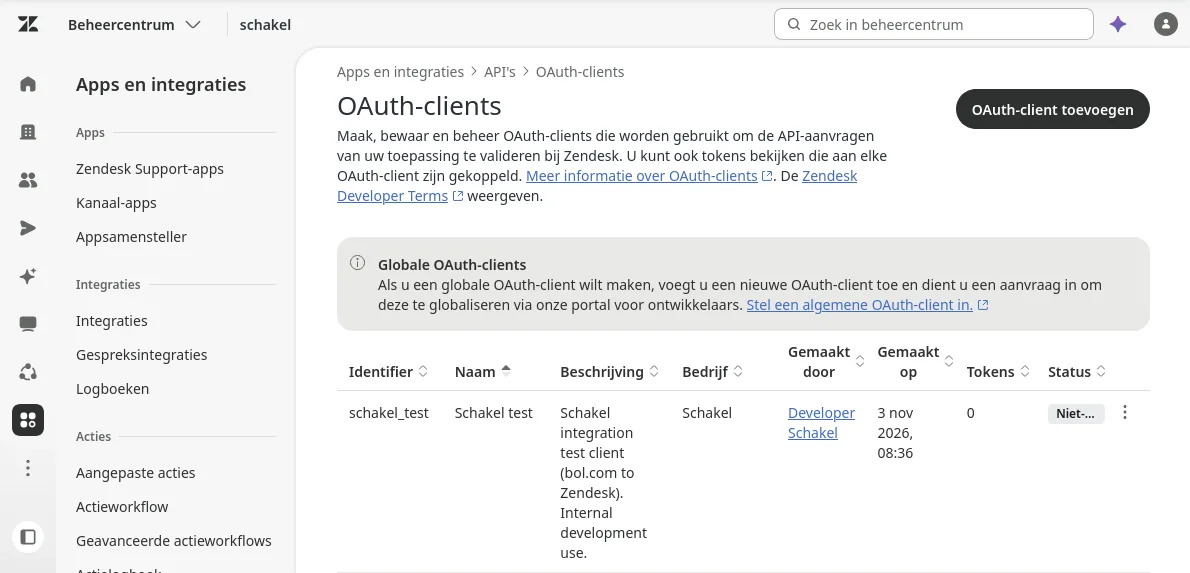
Schakel connects with an OAuth client that you create yourself in your Zendesk. It takes a few minutes and you stay in control: you create it, you can replace or delete it. Log in to Zendesk as an admin and open the Admin Center (Beheercentrum). In the menu go to Apps and integrations (Apps en integraties), APIs (API’s) and choose OAuth clients (OAuth-clients). Do not choose Global OAuth clients (Externe OAuth-clients): those are for apps that Zendesk itself has approved. Click Add OAuth client (OAuth-client toevoegen) at the top right. Zendesk shows the Admin Center in the language of your account; the screenshots in this guide are Dutch, and the English names are given alongside.
- 06
Create your own OAuth client in Zendesk (2/4): name and identifier
Fill in the Add OAuth client form from top to bottom. Naam (Name):
Schakel. Zendesk shows this name in the list of third-party apps. Beschrijving (Description): one sentence, for example Connects Bol.com returns and cancellation requests to Zendesk tickets through Schakel. Bedrijf (Company): the name of your own company; Zendesk fills in a name already. Logo: skip it. Identifier: a short, unique name without spaces, for exampleschakel(the screenshot showsschakel_docs_demo). This is the client ID you enter in Schakel in a moment. It is not secret, but it must be unique within your Zendesk.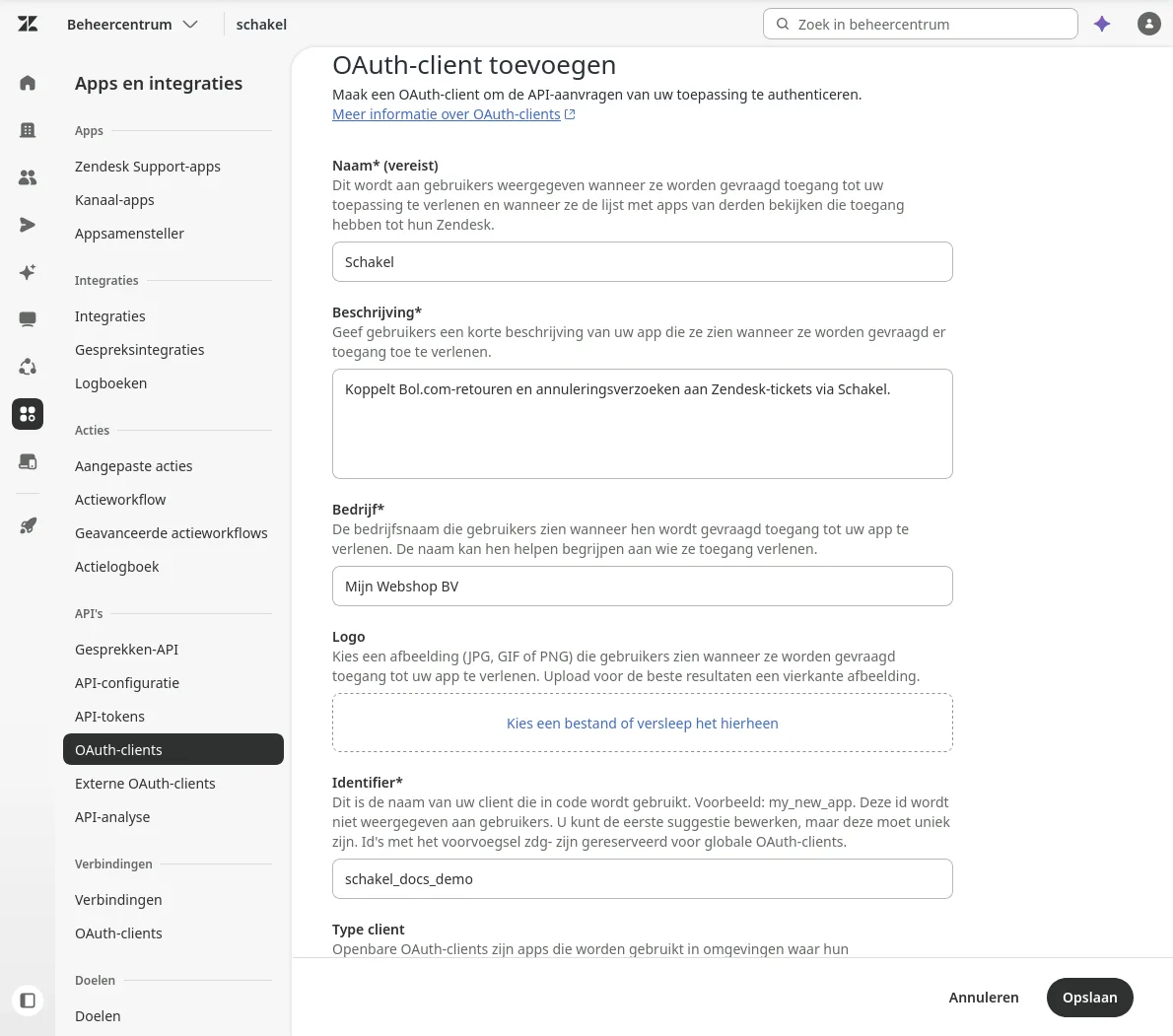
- 07
Create your own OAuth client in Zendesk (3/4): confidential, address and scopes
Type client (Client type): choose Vertrouwelijk (Confidential). A confidential client gets a secret, and with it Schakel requests its own access token from Zendesk. An Openbaar client (Public) has no secret and does not work here. Omleidingswebadressen (Redirect URLs): enter
https://app.schakel.app/api/connections/zendesk/callback. Schakel does not use this address for this connection, but enter it as shown here. Toegestane bereiken (Allowed scopes): choose read and write, or leave the field empty (Zendesk then allows all scopes). Schakel asks for nothing more, and only uses it to create tickets and users and to read the groups (see the next steps).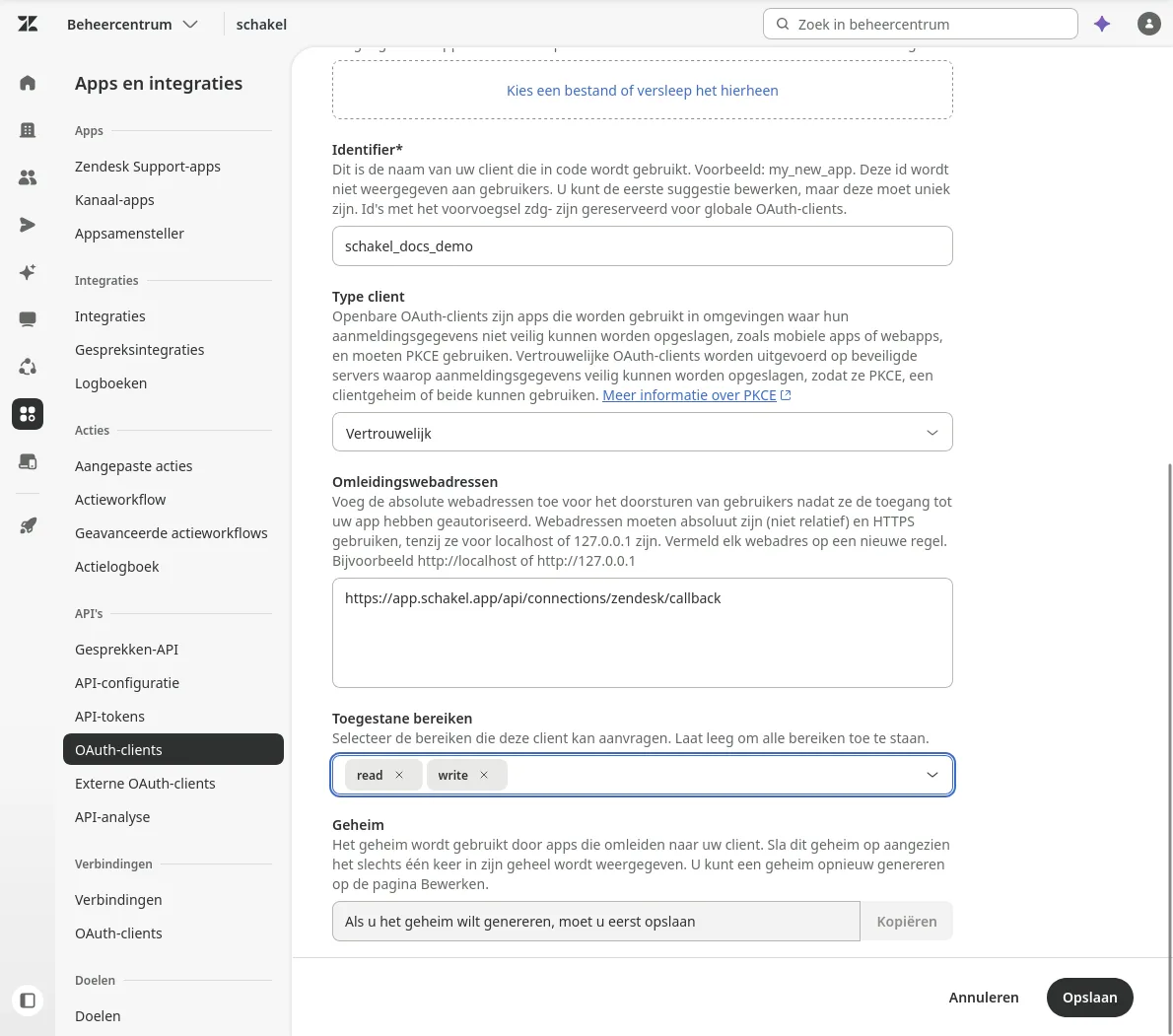
- 08
Create your own OAuth client in Zendesk (4/4): save and copy the secret
Click Opslaan (Save) at the bottom. Zendesk then opens the OAuth-client bewerken (Edit OAuth client) screen. At the bottom, under Geheim (Secret), your client’s secret now appears with a Kopiëren (Copy) button; before saving it only says you have to save first. Copy the secret at once and keep it in your password manager: Zendesk shows it in full only once. The secret gives access to your Zendesk, so do not send it by email or chat. Your client ID is the identifier from the previous step; you also see it in the list of OAuth clients.
- 09
Connect Zendesk in Schakel
Go to step 2 of the setup (Connect Zendesk), or to Connections. Fill in three fields. Zendesk subdomain: the part before
.zendesk.comin the address of your Zendesk. If that ismycompany.zendesk.com, your subdomain ismycompany; if your helpdesk has its own domain, still use the.zendesk.comaddress. Client ID (unique identifier): the identifier from step 2, for exampleschakel. Client secret: the secret you just copied. Click Connect Zendesk. Schakel then requests its own access token from Zendesk and tests it with one read request; a wrong combination is not saved. The secret is stored encrypted and never shown again. What Schakel does with it: create and update tickets and users, create five ticket fields for the Bol.com data (Bol order ID, Bol return ID, Bol RMA, Bol fulfilment and Bol channel) and read the list of groups. Schakel deletes nothing, only looks at its own tickets and calls nothing else. - 10
Choose what becomes a ticket
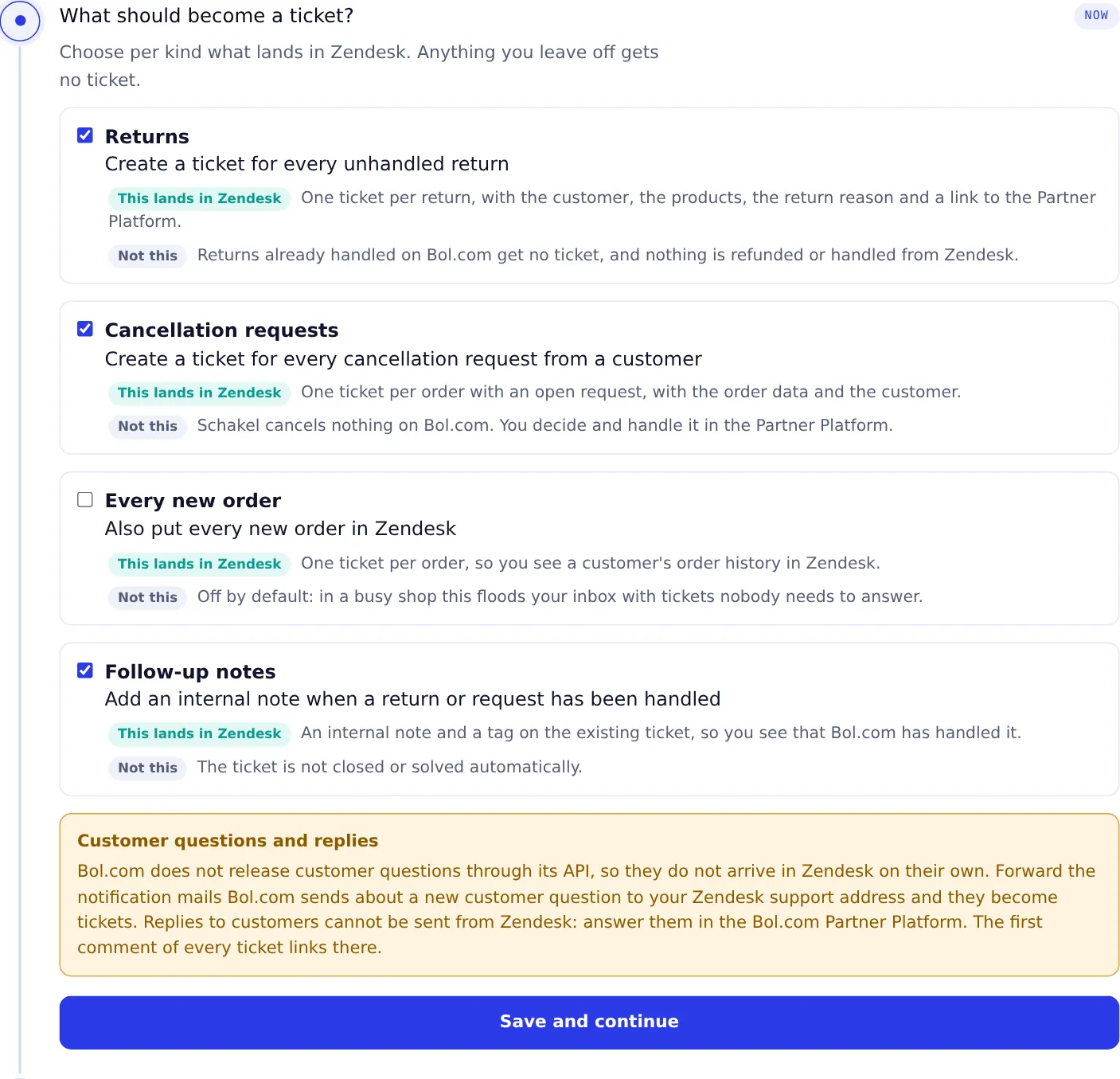
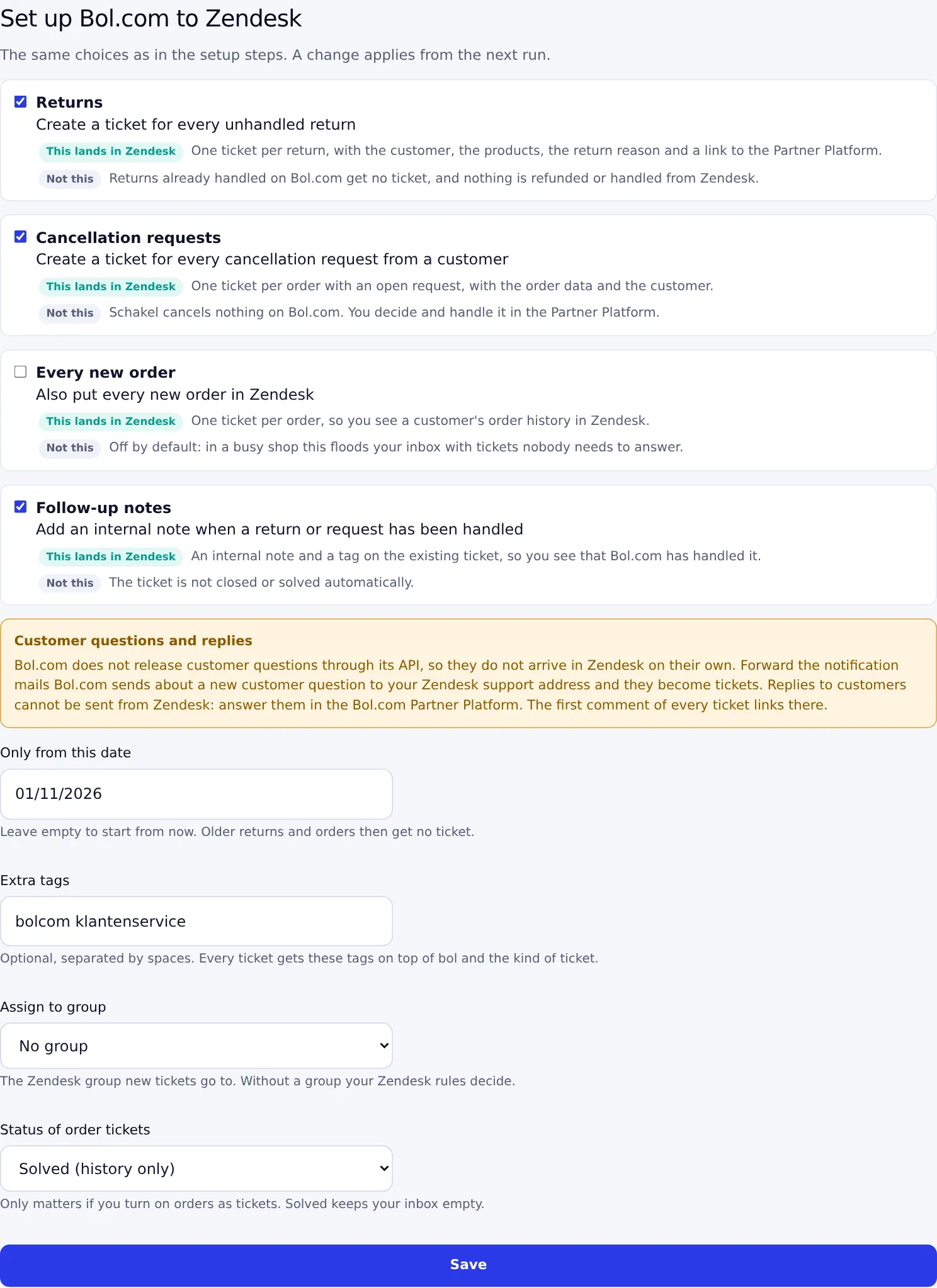
Step 3 of the setup. Returns (recommended, on): one ticket per unhandled return, with the customer, the products, the return reason and a link to the Partner Platform. Cancellation requests (recommended, on): one ticket per order with an open request from the customer. Schakel cancels nothing itself; you decide in the Partner Platform. Every new order (off by default): a ticket per order, only useful if you want to see a customer’s order history in Zendesk. In a busy shop this creates many tickets, so leave it off unless you really want it. Follow-up notes (recommended, on): an internal note and a tag on the existing ticket as soon as Bol.com has handled the return or request. The ticket is not closed automatically. Click Save and continue: until you do, the step does not count as done.
- 11
Set the details
Step 4 of the setup. Only from this date: leave empty to start from now, or pick a date if you also want older returns; anything before it gets no ticket. Bol.com keeps data only briefly and only returns about three months of orders itself, so going back further rarely helps. Extra tags: optional, separated by spaces. Every ticket gets these tags on top of
boland the kind of ticket. Assign to group: the Zendesk group new tickets go to; without a group your Zendesk rules decide. If the groups cannot be loaded, just continue without a group and change it later. Status of order tickets: only matters if you turn on orders as tickets. Solved keeps your inbox empty and is the recommendation. Click Save and continue.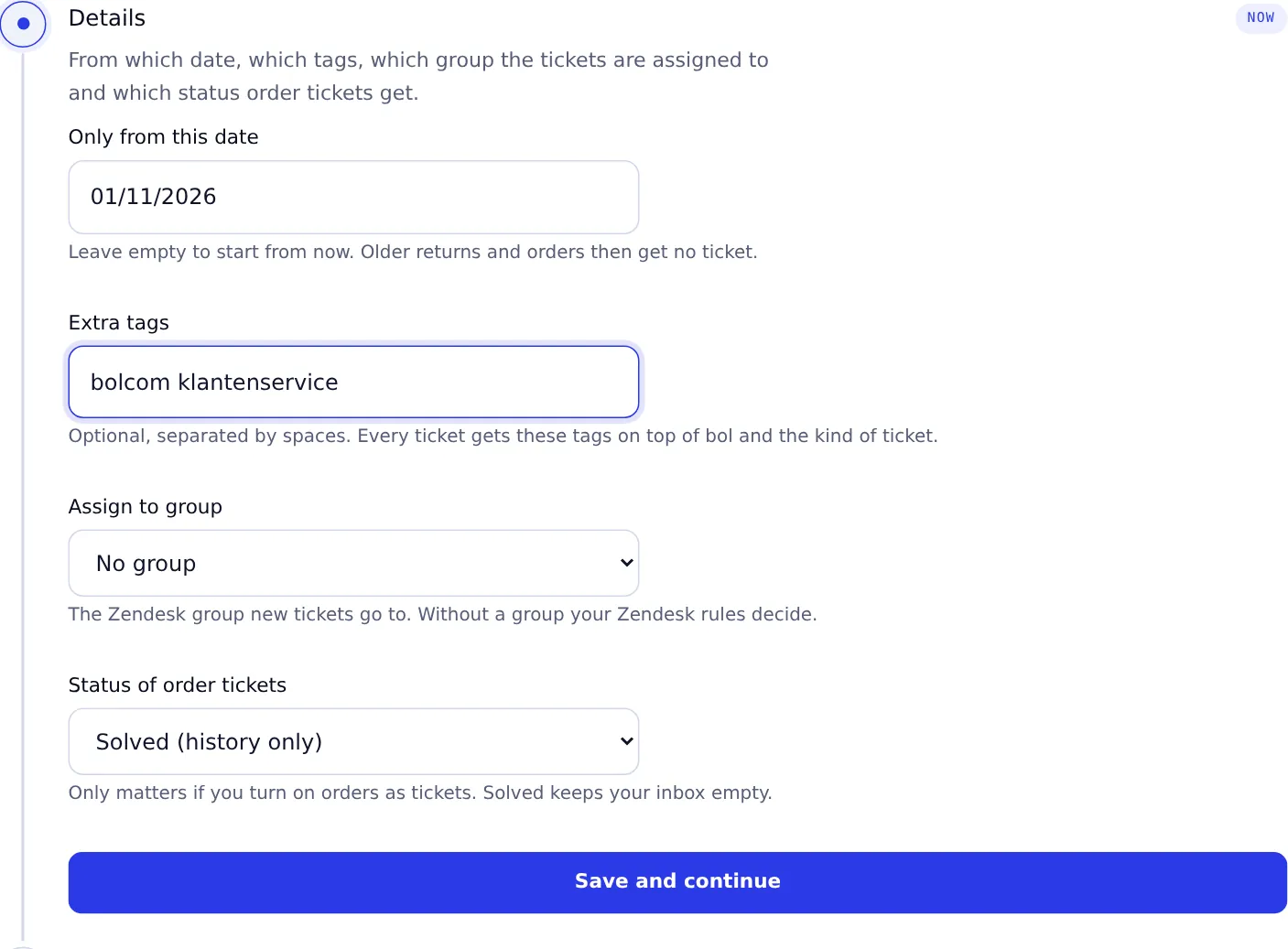
- 12
Review the dry run and start
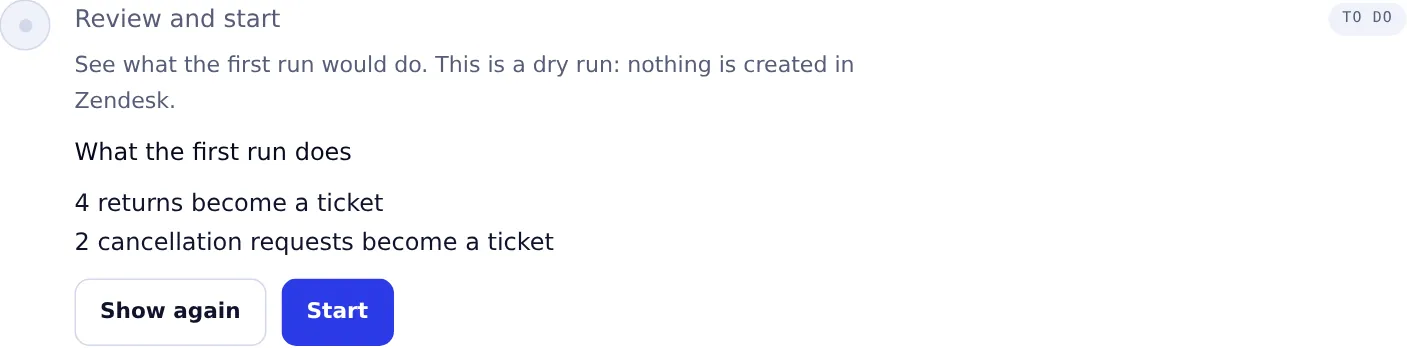
Step 5 of the setup. Click Show the dry run. Schakel then reads Bol.com and shows how many returns, cancellation requests and, if enabled, orders would become a ticket. Nothing is created in Zendesk. If it says at least that many, Bol.com has more to read than fits in one go and the rest follows in the next runs. If the number looks right, click Start: the first sync runs at once and afterwards Schakel keeps Zendesk up to date on its own. If the number is surprisingly high, check the start date first.
- 13
What a ticket looks like in Zendesk
Each ticket has the kind and the number as its subject, for example Bol retour 3100001: product name or Bol annuleringsverzoek order A000.... The first comment is an internal note (the buyer does not see it) with the link to the Partner Platform, the details, the items with product name, SKU, EAN (as a link to bol.com), quantity and amount, the order date and order status (open, shipped or cancelled), whether logistics run via bol (FBB) or you ship yourself (FBR), for a return also the reason and the customer’s remark, and the customer details. The SKU and order status only appear while bol still shows the order. The fields Bol order ID, Bol return ID, Bol RMA, Bol fulfilment and Bol channel are filled, so you can search and filter on them. Tags:
bolplusbol_return,bol_cancellationorbol_order, plus your own tags. When a return has been handled, an internal note and the tagbol_return_handledare added; when a cancellation request disappears,bol_cancellation_resolved. With these you can build a view in Zendesk of what is still open. The customer is a user in Zendesk, so all tickets from the same buyer sit together. - 14
Read the dashboard
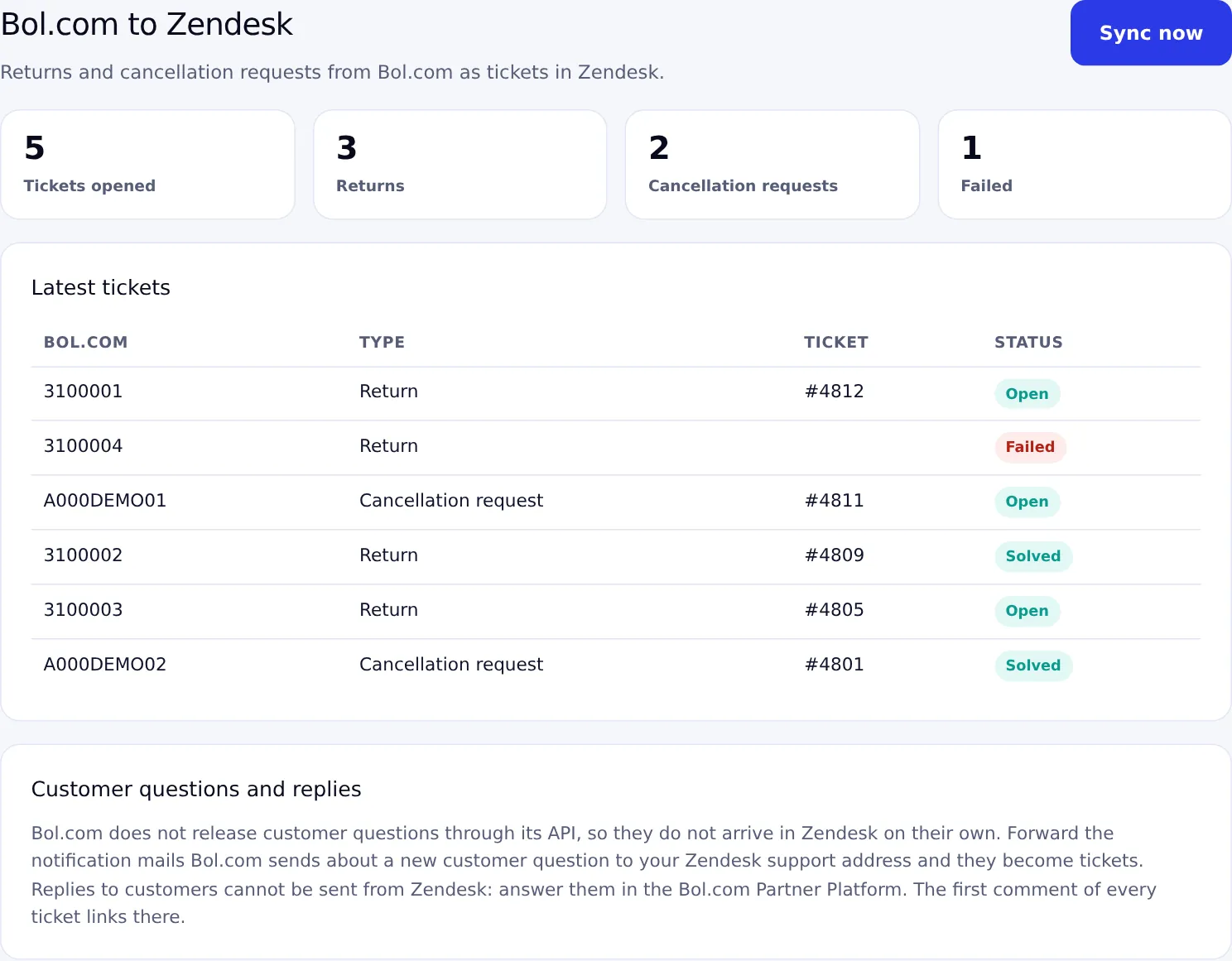
After the first run the connector is on your dashboard. At the top you see the number of tickets opened, split into returns, cancellation requests and, if enabled, orders, and the number of failed tickets. Below are the latest ten tickets with the Bol.com number, the type, the ticket number in Zendesk and the status: Open, Solved or Failed. If you do not want to wait, click Sync now. Schakel retries a failed ticket for about three days; the connector log names the reason. If access to Zendesk has expired or been revoked, a notice at the top links to Connections.
- 15
Change your choices later
All choices from the setup are also under Settings in the connector menu. A change applies from the next run. On the Connections page you see your Bol.com and Zendesk accounts; that is also where you reconnect or remove a connection.
- 16
Replace the secret
Do you want to replace the secret, for example because it leaked or because a colleague with access leaves? In Zendesk (Admin Center, Apps and integrations, APIs, OAuth clients) open your client to edit it and generate a new secret at the bottom under Geheim (Secret). Copy it at once. Then in Schakel go to Connections, paste the new secret at your Zendesk account and click Save and test. The old secret then stops working; as long as Schakel does not have the new secret yet, Schakel says access has expired. Your settings are kept and Schakel creates the tickets missed in the meantime afterwards.
- 17
Revoke access
To take access away from Schakel entirely, delete the OAuth client in Zendesk (Admin Center, Apps and integrations, APIs, OAuth clients, your client). Only an admin can do that and it cannot be undone. Without that client Zendesk no longer gives Schakel access tokens, so Schakel can no longer do anything in your Zendesk; existing tickets stay. Then also remove the Zendesk connection on the Connections page in Schakel: Schakel then wipes the stored secret on its side. Removing it in Schakel alone is not enough if you want to be sure the secret works nowhere: that is done in Zendesk. If you want to connect again later, create a new OAuth client and enter its details in Schakel.
- 18
Optional: forward customer questions
Customer questions only live in the Partner Platform and in the notification mails from Bol.com; the API does not release them. The workaround: forward those notification mails to your Zendesk support address, and every mail becomes a ticket. You find your support address in Zendesk under Admin Center, Channels, Email; by default it is
support@mycompany.zendesk.com. In your mail program set up a filter on mails from Bol.com about a new customer question and have it forward them to that address (in Gmail you must verify the forwarding address first). These are plain email tickets, not linked to Schakel. Replies cannot reach the buyer through Zendesk here either: answer the question in the Partner Platform and use the ticket as a worklist.
Worth knowing
- Which customer data does Schakel copy, and why? Name, the (anonymous) Bol.com email address, phone number and delivery address when Bol.com provides them, plus what was ordered or returned. Bol.com lets this data disappear quickly: the email address after about 61 days and the billing address after about a month. By putting it in the ticket when it is created, you still have it when your team looks at it later. Details that Bol.com has already anonymised are not copied.
- What name does an anonymised buyer get? If the buyer is anonymised, Schakel creates no user and the requester is called Bol klant (Bol customer). The ticket itself is fully usable, you only miss the name and address.
- Can I reply or handle a return from Zendesk? No. Bol.com offers no way to send free text to a buyer and Schakel handles nothing on Bol.com. You reply and handle in the Partner Platform; Schakel sees that and adds a note to the ticket.
- How do I revoke the access? A Zendesk admin deletes the OAuth client that was created for Schakel, in the Admin Center under Apps and integrations, APIs, OAuth clients. Then also remove the connection on the Connections page in Schakel. See the steps above. You revoke your Bol.com key in the Partner Platform under API Instellingen.
If something goes wrong
- Schakel says Zendesk does not accept the client ID or the secret.
- Zendesk calls this invalid_client. Check the client ID: it is the identifier of the client (for example
schakel), not the name. Paste the secret without spaces before or after it. If the secret is lost or replaced, generate a new secret in Zendesk (see the step about replacing the secret). If the client was deleted, create a new one. A client of the type Openbaar (Public) has no secret: create one of the type Vertrouwelijk (Confidential). - Schakel says the OAuth client does not allow the read and write scopes.
- Zendesk calls this invalid_scope. Open the client in Zendesk and leave Toegestane bereiken (Allowed scopes) empty, or choose read and write. Save and try again in Schakel.
- Schakel says this Zendesk user is not an agent or admin, or I do not see OAuth clients.
- Only an admin sees the Admin Center and can create an OAuth client; otherwise Zendesk answers with a 403. Ask an admin of your Zendesk to create the client and use its client ID and secret.
- Schakel says this Zendesk account does not exist, or I end up in a different Zendesk.
- Check the subdomain: only the part before
.zendesk.com, somycompanyand not the whole address. Use the.zendesk.comaddress even if your helpdesk has its own domain. You can enter it again on the Connections page. - Schakel says access to Zendesk has expired.
- This happens when the OAuth client or its secret was deleted or replaced in Zendesk. Check in Zendesk that the client still exists, enter the (new) client ID and secret on the Connections page at your Zendesk account and click Save and test, or use the link in the notice on the dashboard. Your connector and settings are kept. Tickets missed in the meantime are created afterwards.
- Schakel says Zendesk cannot be reached.
- Zendesk has an outage or is briefly unreachable. Try again in a few minutes; existing connections pick it up again on their own.
- No tickets are arriving.
- Usually there is nothing new: Schakel only creates tickets for unhandled returns and open cancellation requests. In the settings, check that Returns and Cancellation requests are on and that the start date is not too recent. If the dashboard shows a notice about Zendesk, enter the client details again (see the notice above). Customer questions never arrive through the connector (see the last step).
- I see duplicate tickets.
- Schakel creates at most one ticket per return, per order with a cancellation request and per order, even if a run stops halfway. Duplicates therefore almost always come from another source: the forwarded Bol.com notification mails, or a Zendesk rule of your own. Search on the Bol return ID or Bol order ID field or on the
boltag to see which tickets come from Schakel. - A ticket is Failed or the run did not finish.
- Zendesk limits the number of requests per minute, on the entry plans to around 10. Schakel respects that: if Zendesk answers with a limit, the run stops and the rest continues on the next run. Just wait a run. If a ticket keeps failing, check the connector log for the reason.
- The requester is called Bol klant and there is no address.
- Bol.com has already anonymised this buyer’s details, for example for an older return. Schakel does not copy those. The order number and products are in the ticket, and you find the rest in the Partner Platform.
Connectors that use your Zendesk access
Once you hold the keys, this is where they go. Every connector below talks to Zendesk.
Stuck on a step?
Screens move around. If what you see does not match the screenshots, message us and we will look at it with you, and fix the page.