Creating and connecting your Shopify app
You create your own app once in your Shopify Dev Dashboard and give the Client ID and Secret to Schakel, which lets Schakel read and update your orders, stock and shipments on your behalf. It takes about five minutes and needs no coding.
What you end up withA Client ID and Client Secret from your own Shopify app, entered in Schakel, with the store connected.
- 01
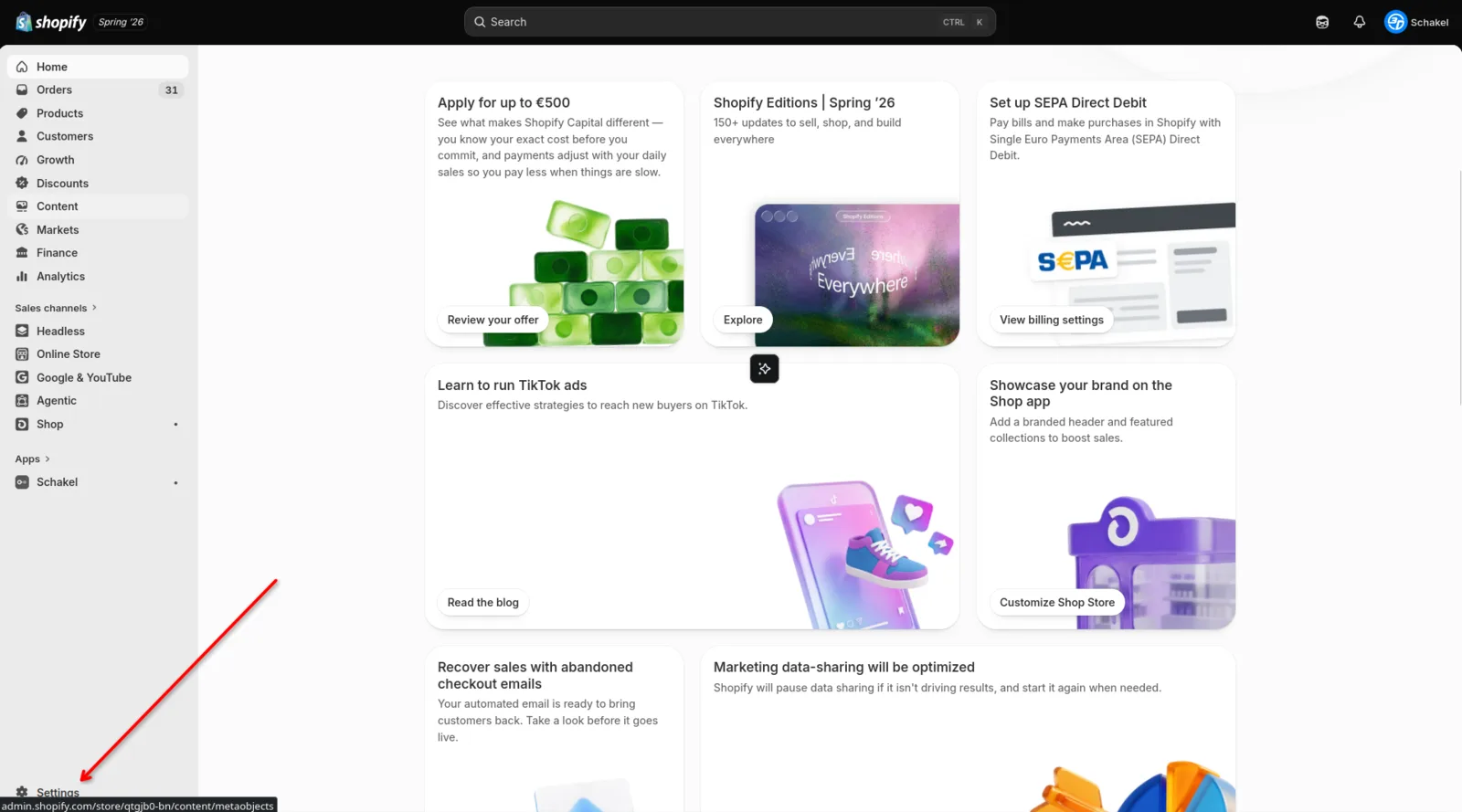
Open Settings in your store
Log in to your Shopify admin and click Settings in the bottom left.
- 02
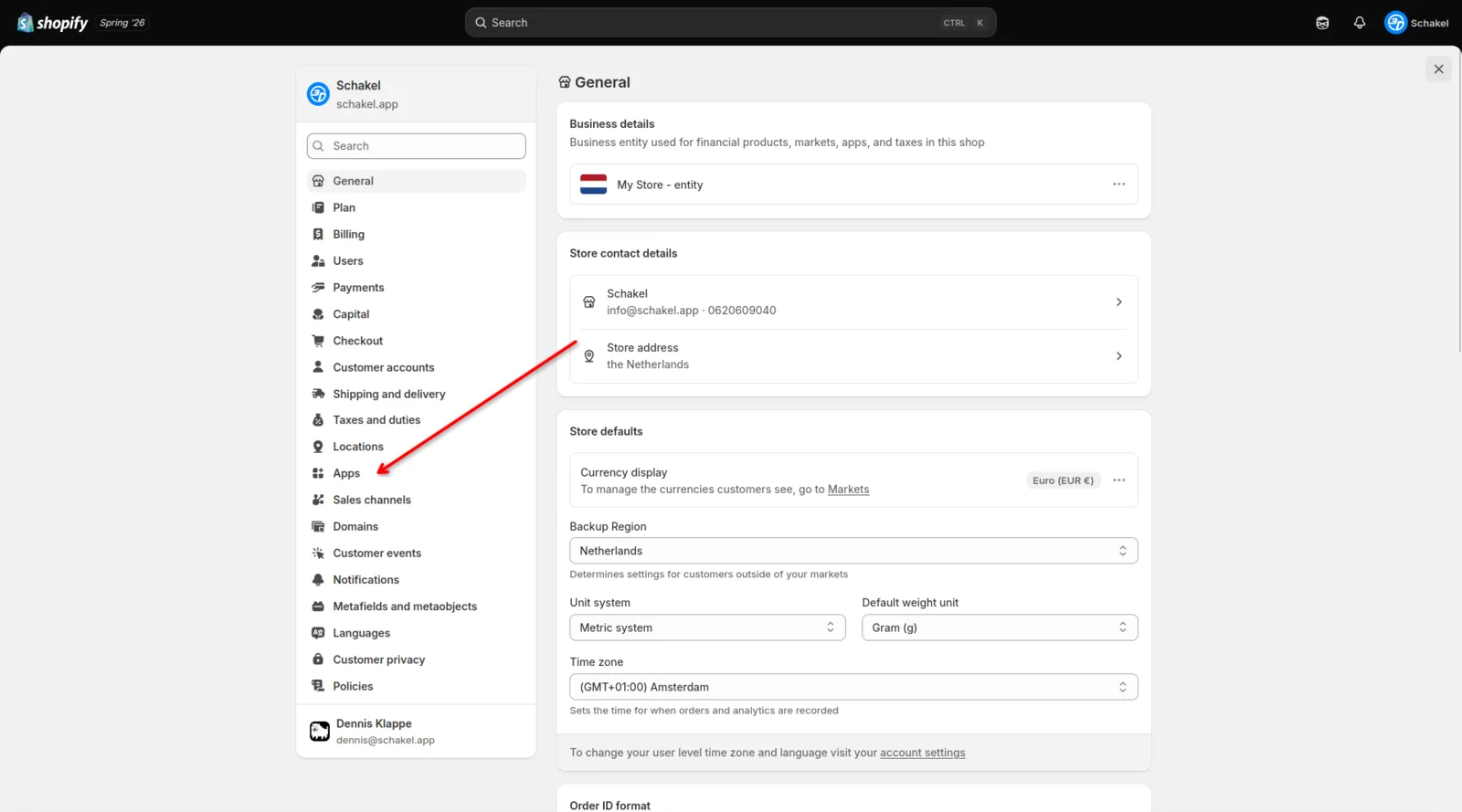
Go to Apps
In the Settings left menu, click Apps and sales channels.
- 03
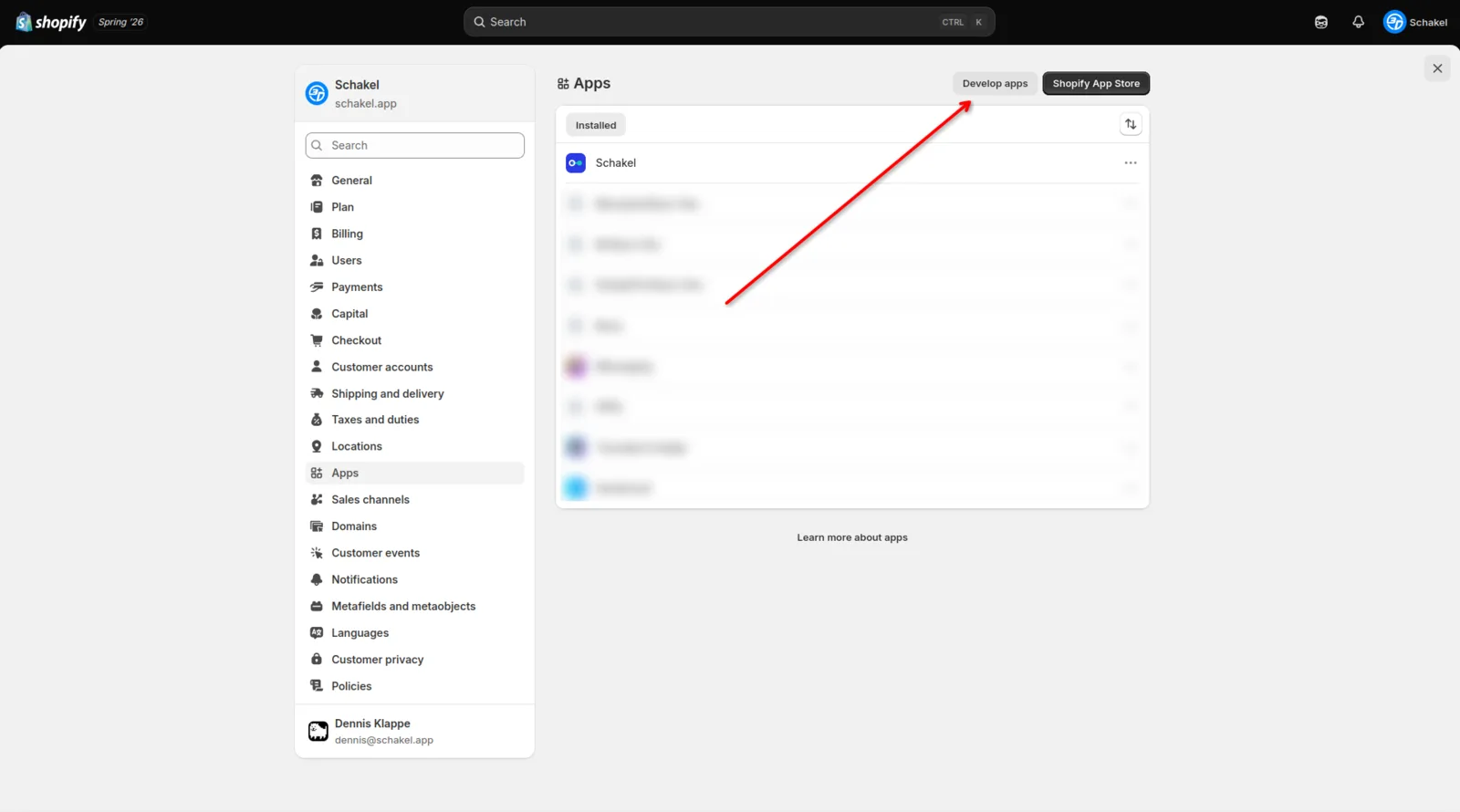
Click Develop apps
Click the Develop apps button in the top right.
- 04
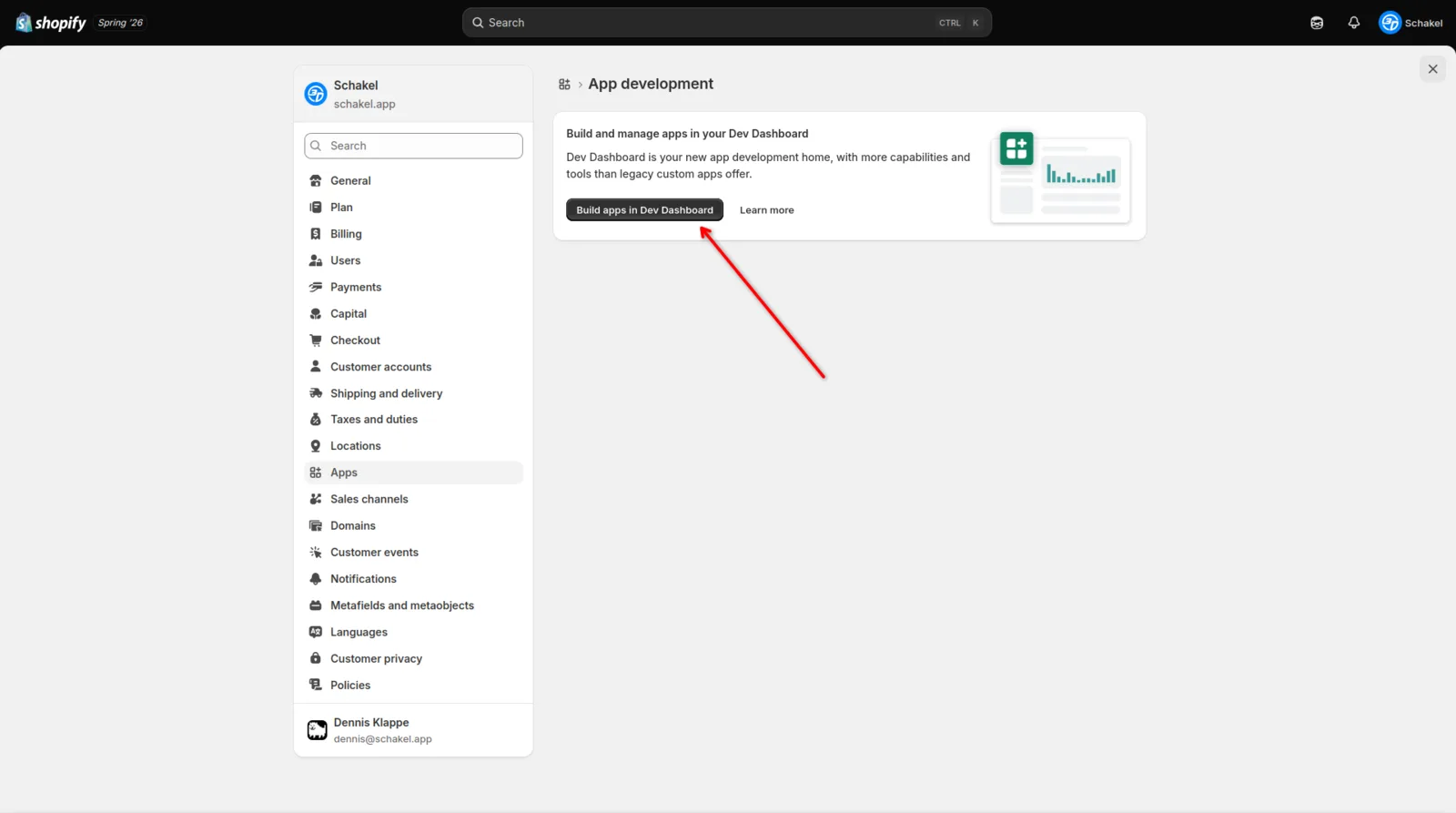
Open the Dev Dashboard
Click Build apps in Dev Dashboard. This takes you to the Shopify Dev Dashboard.
- 05
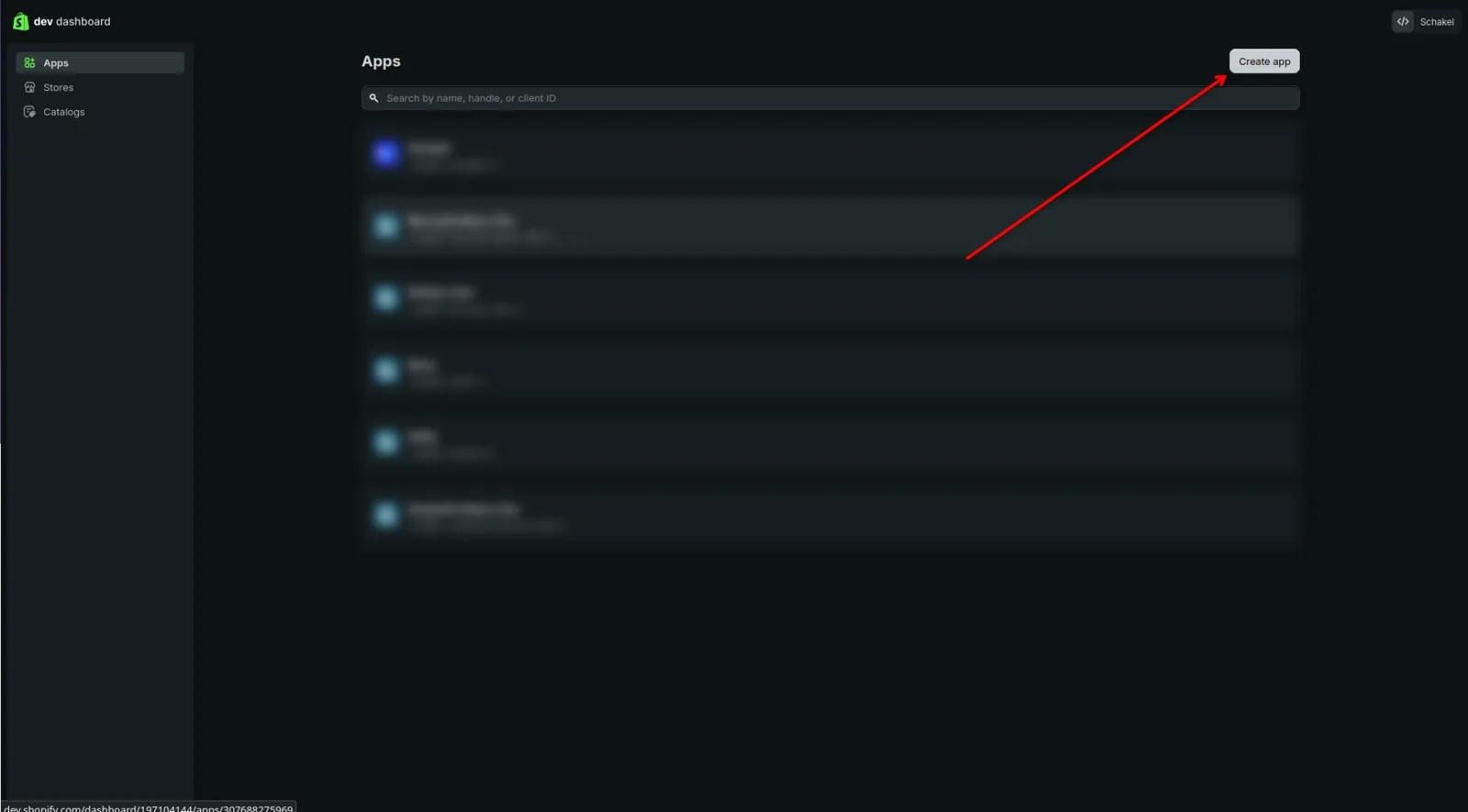
Create a new app
Click Create app in the top right.
- 06
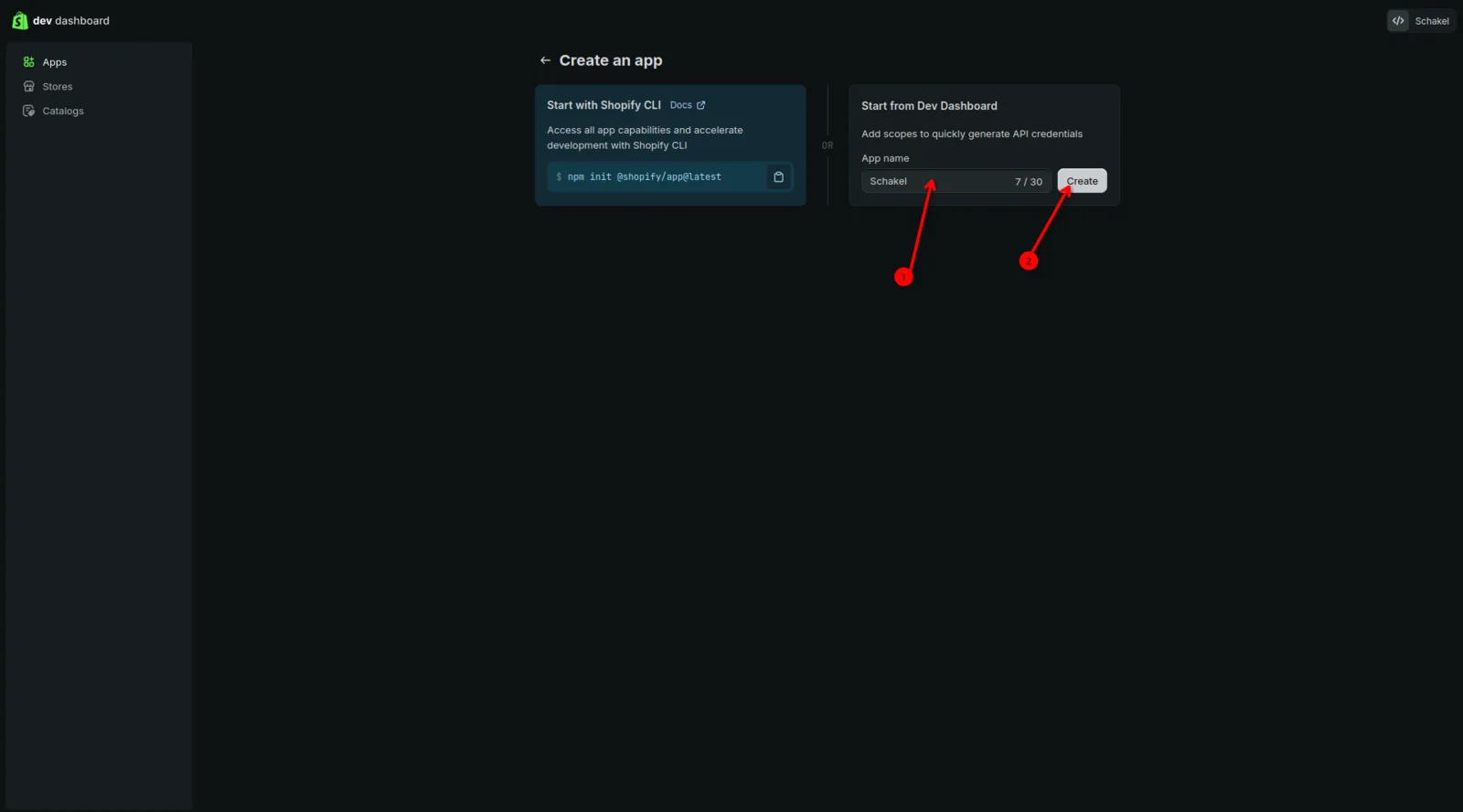
Name the app Schakel
For App name enter Schakel, then click Create.
- 07
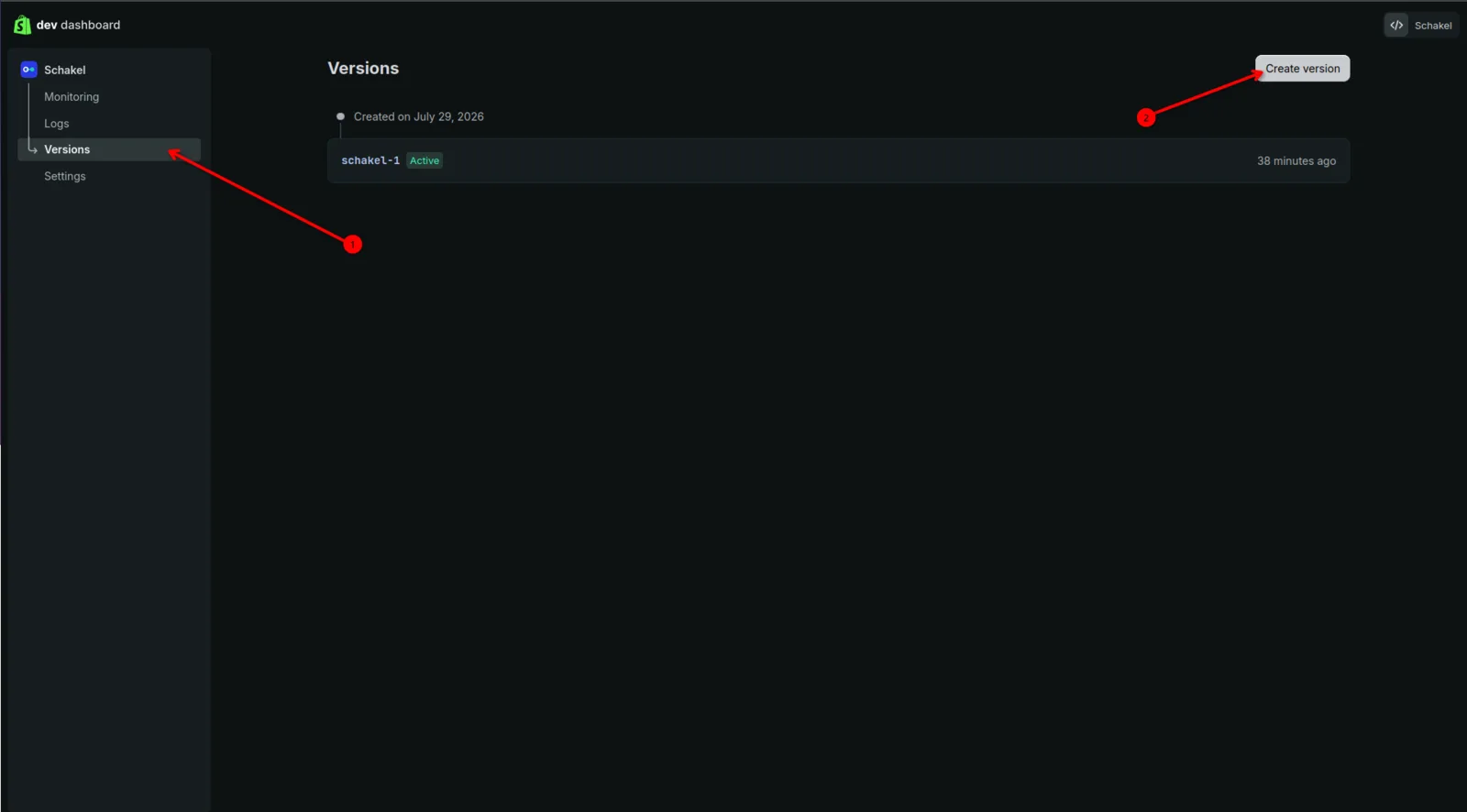
Open Versions and create a version
In your app go to Versions and click Create version.
- 08
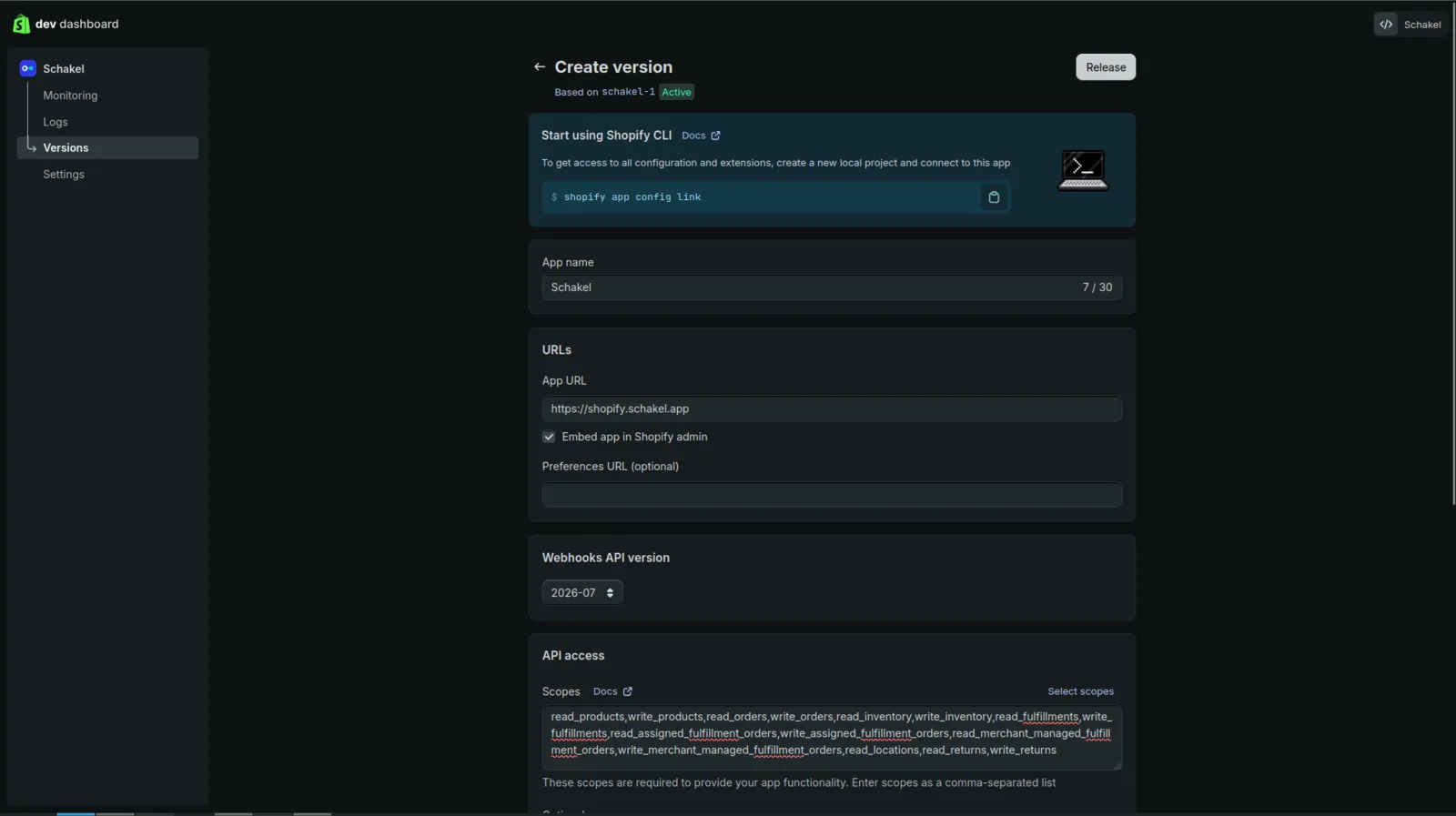
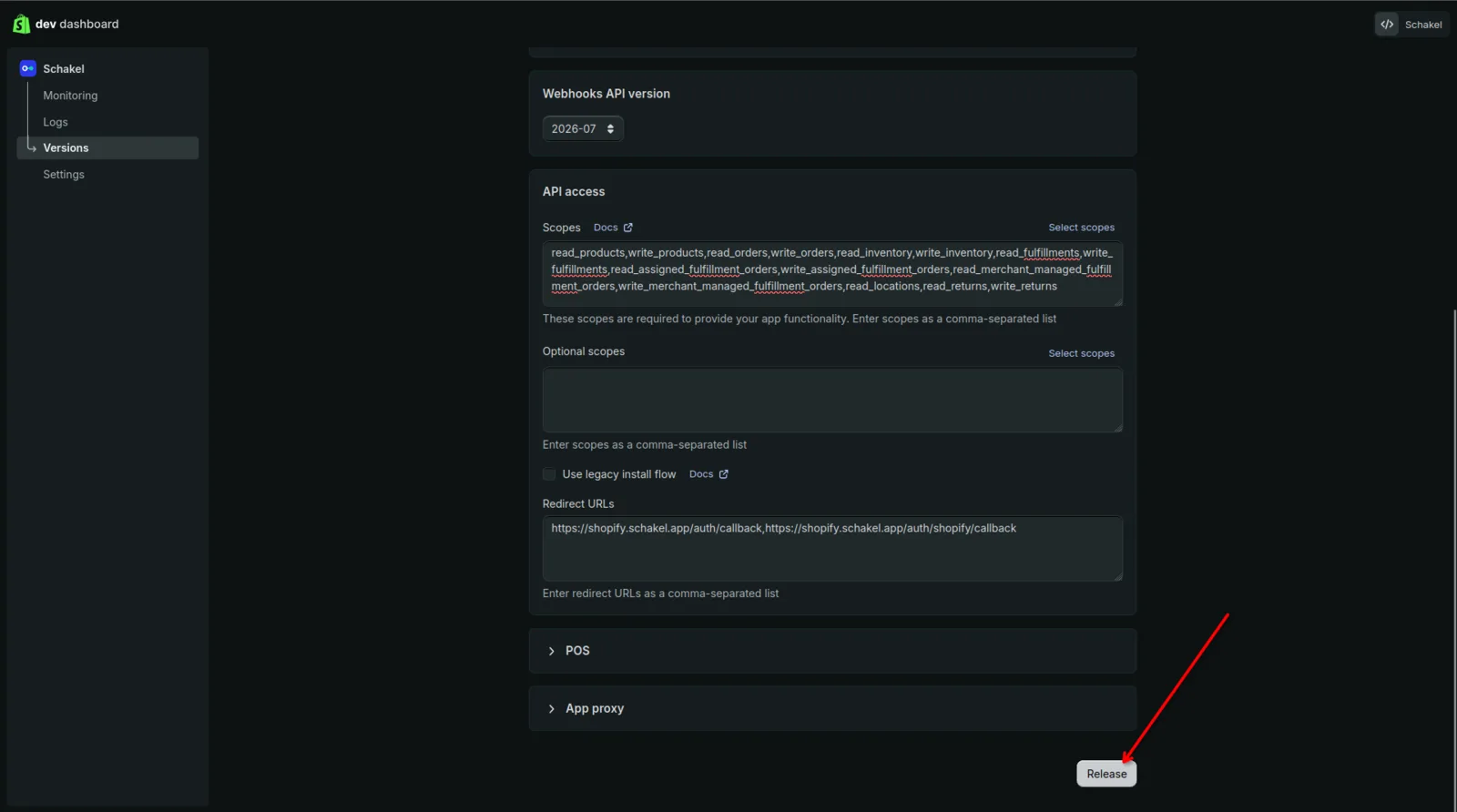
Set App URL, embed and scopes
Set App URL to https://app.schakel.app/shopify, set Webhooks API version to the newest, and paste the scopes you can copy ready-made from Schakel. Leave Embed app in Shopify admin OFF: Schakel runs at its own address, not inside your Shopify admin. Turn it on and Shopify installs the app the new way and hands Schakel a token tied to your login, which cannot sync in the background. If you see a separate Use legacy install flow switch, turn it on.
- 09
Paste the redirect URL and release
Under Redirect URLs paste https://app.schakel.app/api/connections/shopify/callback (copy it from Schakel) and click Release in the bottom right.
- 10
Upload the Schakel icon
Go to Settings and scroll to App icon. Download the Schakel icon below and upload it there. Shopify does not require this, but it makes the app recognisable in your admin.
 Download schakel-app-icon.png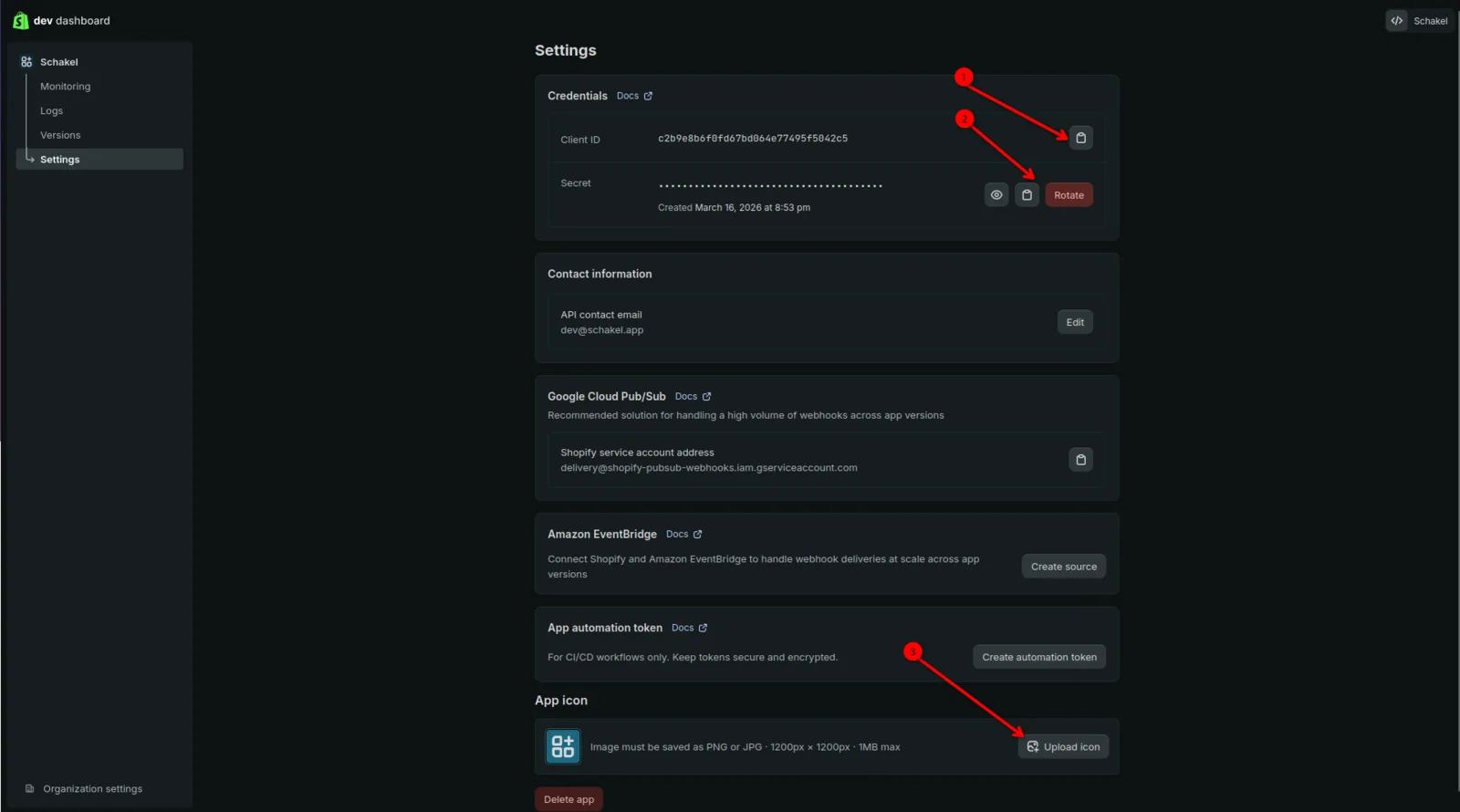
- 11
Copy your Client ID and Secret
On the same Settings page under Credentials copy your Client ID, and click the eye next to Secret to reveal and copy it.
- 12
Enter them in Schakel
In Schakel go to Connections, choose Add Shopify and enter your shop address, Client ID and Secret. Click connect.
- 13
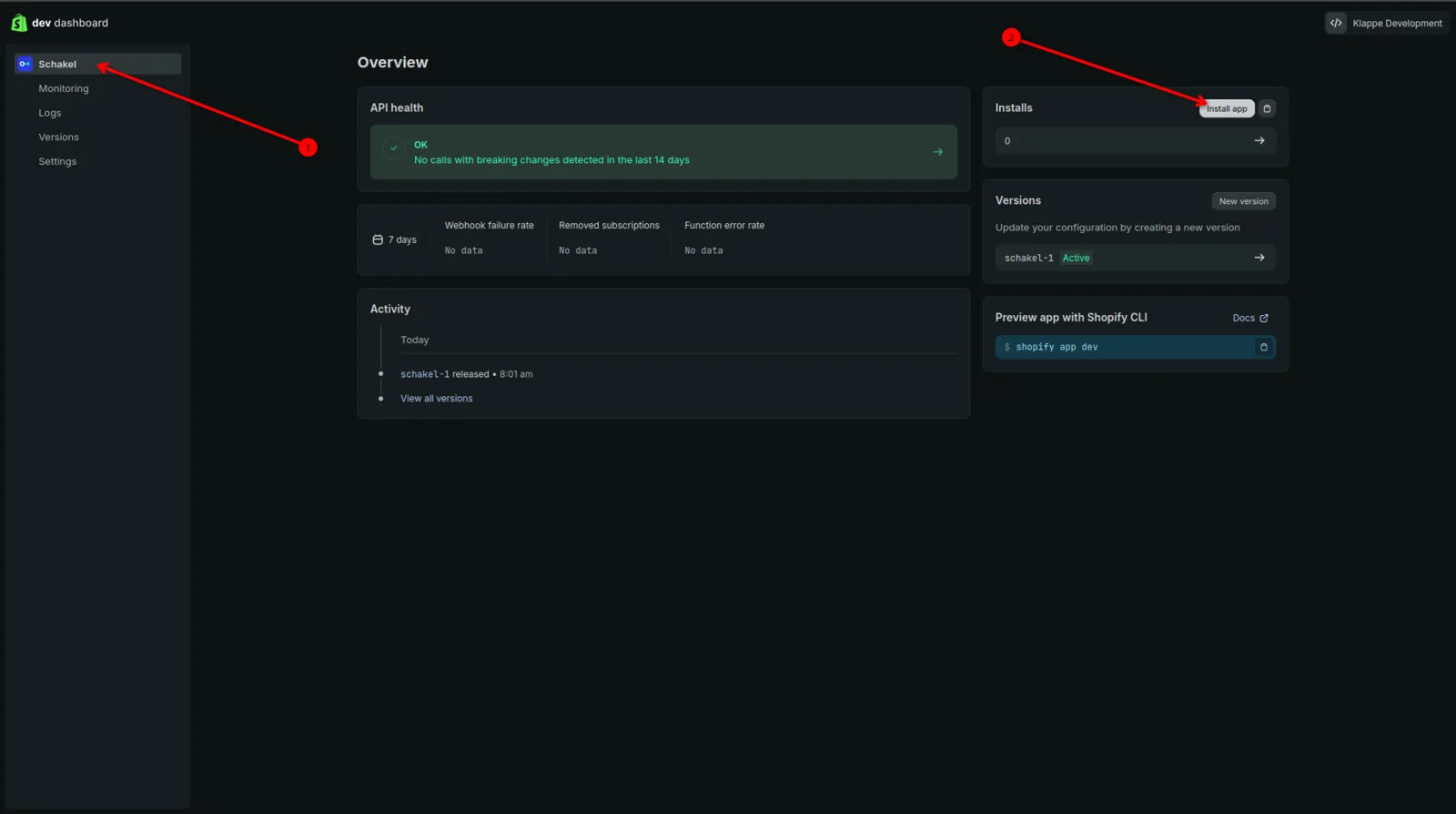
Install the app
In the Dev Dashboard, on your app overview, click Install app in the top right.
- 14
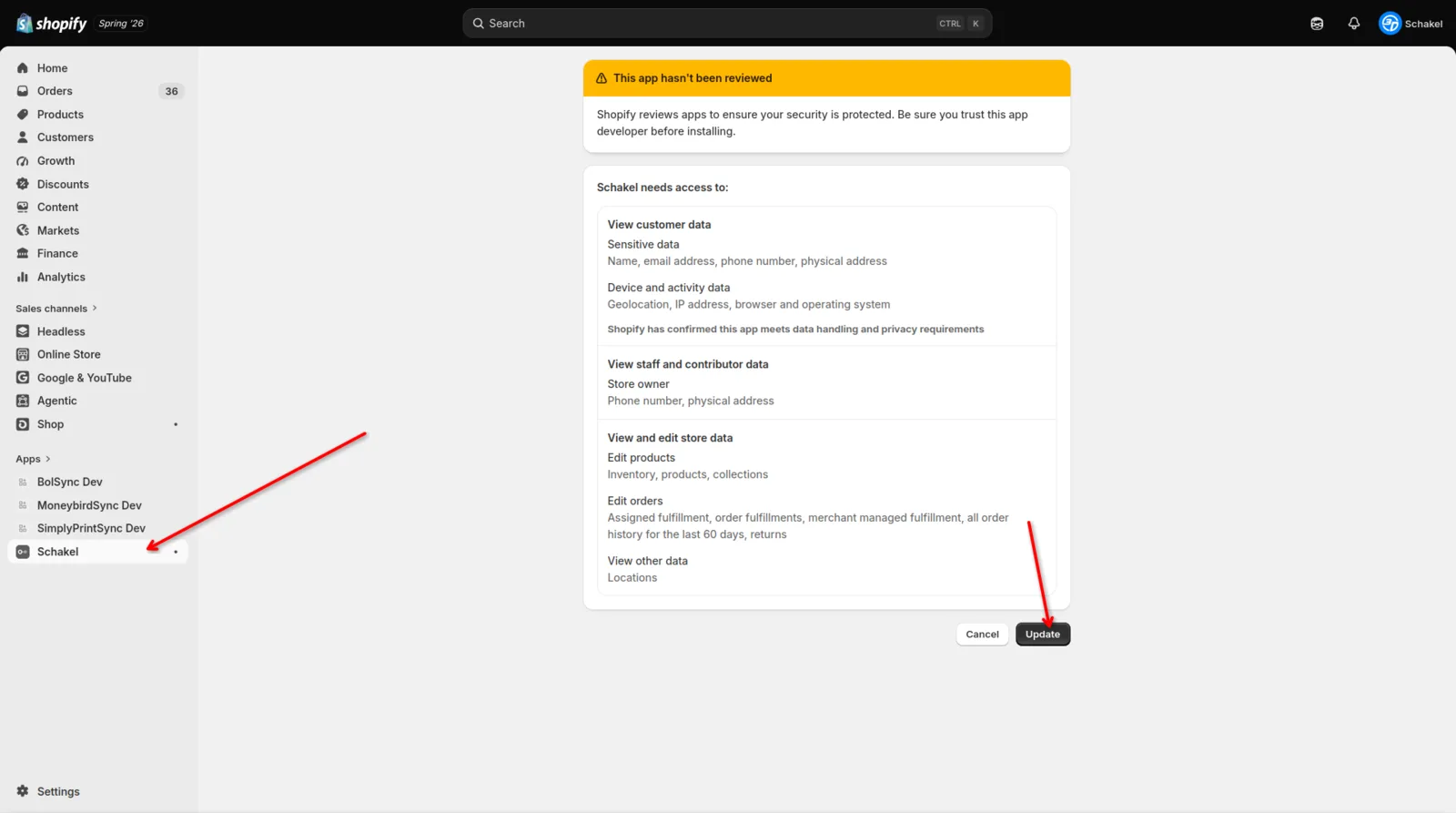
Authorise the access
You get a screen where Schakel asks for access to your store data. Click approve (Update / Install). The connection then shows green in Schakel.
Worth knowing
- Your Client Secret is a password. Do not email it or drop it in a shared document. If you lose it, use Rotate in your Dev Dashboard and enter the new secret in Schakel again.
- The App URL must be exactly https://app.schakel.app/shopify and the redirect URL exactly https://app.schakel.app/api/connections/shopify/callback, otherwise the connection cannot complete.
If something goes wrong
- You see "This app is under review" and cannot install.
- Your app is set to Public distribution, which Shopify reviews first. Set the distribution to Custom distribution for your own store. A custom app installs immediately, with no review.
- On install: "Could not find Shopify API application" / application_cannot_be_found.
- The Client ID in Schakel does not belong to an app in your store. Copy the Client ID and Secret of the app you created in this store again, and paste them into Schakel.
- Schakel says the store is not connected yet.
- Install the app and approve the access on the grant screen. If no screen appears, check that the App URL is exactly https://app.schakel.app/shopify and that you released the version.
Connectors that use your Shopify access
Once you hold the keys, this is where they go. Every connector below talks to Shopify.
Stuck on a step?
Screens move around. If what you see does not match the screenshots, message us and we will look at it with you, and fix the page.