Creating your Sendcloud API integration
In Sendcloud you create one integration of the type Sendcloud API. That gives you a Public key and a Secret key to paste into Schakel, and you give Sendcloud a webhook address so tracking numbers come back automatically. It takes about two minutes.
What you end up withA Public key and Secret key from your own Sendcloud account, entered in Schakel, with the webhook address set.
- 01
Open your integrations in Sendcloud
In Sendcloud go to Settings, Integrations. Under the integration types find the Sendcloud API tile and click Connect. Make sure you pick that one and not Shopify or WooCommerce: Schakel delivers the orders itself.
Or go straight to https://app.sendcloud.com/v2/settings/integrations/manage
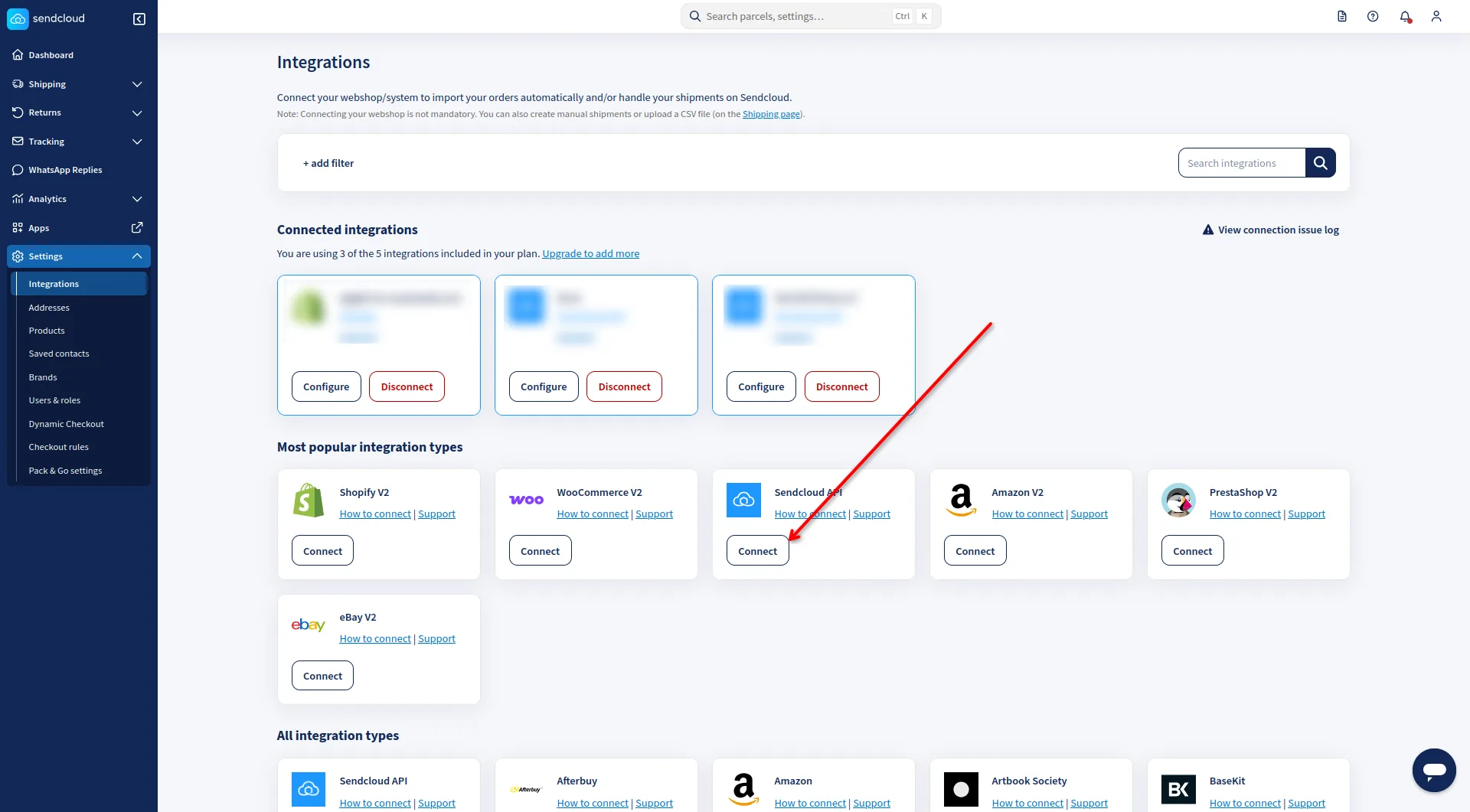
- 02
Name the integration and set a webhook
Name the integration Schakel, so you can tell later where it came from. For the webhook address, fill in the URL that Schakel shows you on the connect screen, using the copy button beside it, and save. Without that address, shipping statuses and tracking numbers do not come back.
- 03
Paste the keys into Schakel
After saving, Sendcloud shows a Public key and a Secret key. In Schakel, go to Connections, click Connect an account under Sendcloud and paste them both.
Worth knowing
- Your Secret key is a password. Do not send it by email or drop it in a shared document.
- Sendcloud counts this integration towards the number included in your plan. If you are at your maximum, the integrations page says so at the top.
- Already have a Sendcloud API integration for something else? Create a second one rather than editing the existing one, so you can disconnect Schakel later without stopping the other.
If something goes wrong
- Schakel says the credentials are invalid.
- Copy the Public key and Secret key again, with no space before or after. Also check that you took them from the Sendcloud API integration and not from another one.
- No tracking numbers are coming back.
- The webhook address is missing or wrong in the integration. Open it in Sendcloud, paste the address from the connect screen again and save.
Connectors that use your Sendcloud access
Once you hold the keys, this is where they go. Every connector below talks to Sendcloud.
Stuck on a step?
Screens move around. If what you see does not match the screenshots, message us and we will look at it with you, and fix the page.