Creating your Yuki webservice key
In Yuki you create one webservice API key and paste it into Schakel. It takes about a minute. The key belongs to your Yuki domain, so if it reaches several administrations you pick which one in Schakel afterwards.
What you end up withA webservice API key from your own Yuki domain, entered in Schakel.
- 01
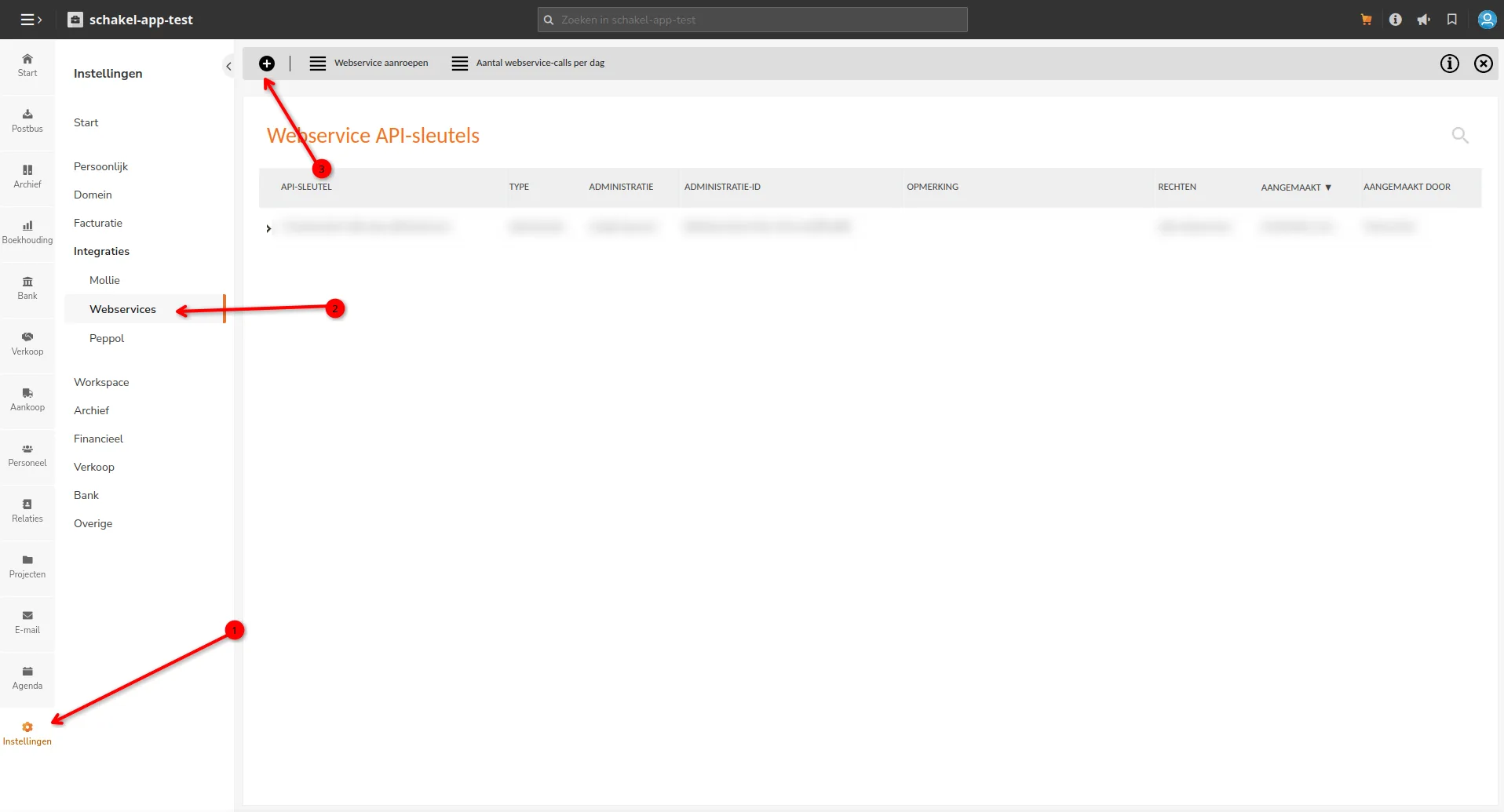
Go to Instellingen, Webservices
Log in to Yuki and click Instellingen at the bottom of the left sidebar. Then in the left column, under Integraties, click Webservices. You now see the Webservice API-sleutels page with the keys that already exist.
- 02
Add a key
Click the plus button above the list. In the Opmerking field type Schakel, so you can later tell from the list what the key belongs to, and click Bewaren.
- 03
Copy the key into Schakel
Copy the API-sleutel from the new row and paste it into Schakel on the Connections page. Schakel tries the key right away and shows which administrations it reaches. If there are several, you pick the administration that should receive the bookings there.
Worth knowing
- The row in Yuki shows per key which type, which administration and which rights it carries. If Schakel ends up booking into the wrong administration, that is the place to check.
- Yuki counts 1000 webservice calls per day per domain by default. At the top of that same page sits Aantal webservice-calls per dag, where you see your usage. More calls is a paid add-on at Yuki, which you arrange with Yuki yourself.
- No Yuki API returns your VAT rates. In the connector settings you therefore copy them across from Yuki yourself, under Instellingen and BTW-tarieven: a type and a percentage per situation. If that pair does not exist in your domain, Yuki cancels the entire invoice, not just the line.
- For a marketplace connector you also create a payment method in Yuki pointing at a clearing account. Without that payment method every sale lands on trade debtors and stays there, while Yuki simply reports success. Schakel therefore only lets you save the connector once the payment method really exists.
- An invoice dated before your administration start date is booked by Yuki as an opening balance: no revenue and no VAT, while every layer reports success. Schakel therefore skips those orders rather than quietly booking them wrong.
If something goes wrong
- Schakel says the key does not work.
- A half-copied key is the usual cause. Copy it again from the row on the Webservice API-sleutels page and paste it once more. If the list is empty, the key was never saved.
- No invoices are being posted.
- The connector is probably not fully set up. Without a revenue account, a clearing account, a payment method and all four VAT codes it deliberately posts nothing. You find them in the connector settings.
- Yuki refuses my invoices in dollars or pounds.
- Foreign currency is a paid contract option at Yuki. If it is not in your contract, Yuki refuses every invoice in a currency other than your domain currency. You arrange that with Yuki, not with us.
- Yuki cancels an invoice with no clear reason.
- Almost always a VAT code that does not exist in your domain. Yuki looks the code up from the type and percentage pair, and if it cannot find that pair the whole invoice goes. Compare your four codes with the list in Yuki under Instellingen, BTW-tarieven.
Connectors that use your Yuki access
Once you hold the keys, this is where they go. Every connector below talks to Yuki.
Stuck on a step?
Screens move around. If what you see does not match the screenshots, message us and we will look at it with you, and fix the page.