Creating your SimplyPrint API key
SimplyPrint gives you an API key that lets Schakel put print jobs in your queue. The key and the Company ID sit on the same page in your account, so you are done in about a minute.
What you end up withAt the end you hold two values: an API key and the Company ID it belongs to.
- 01
Open the API page in SimplyPrint
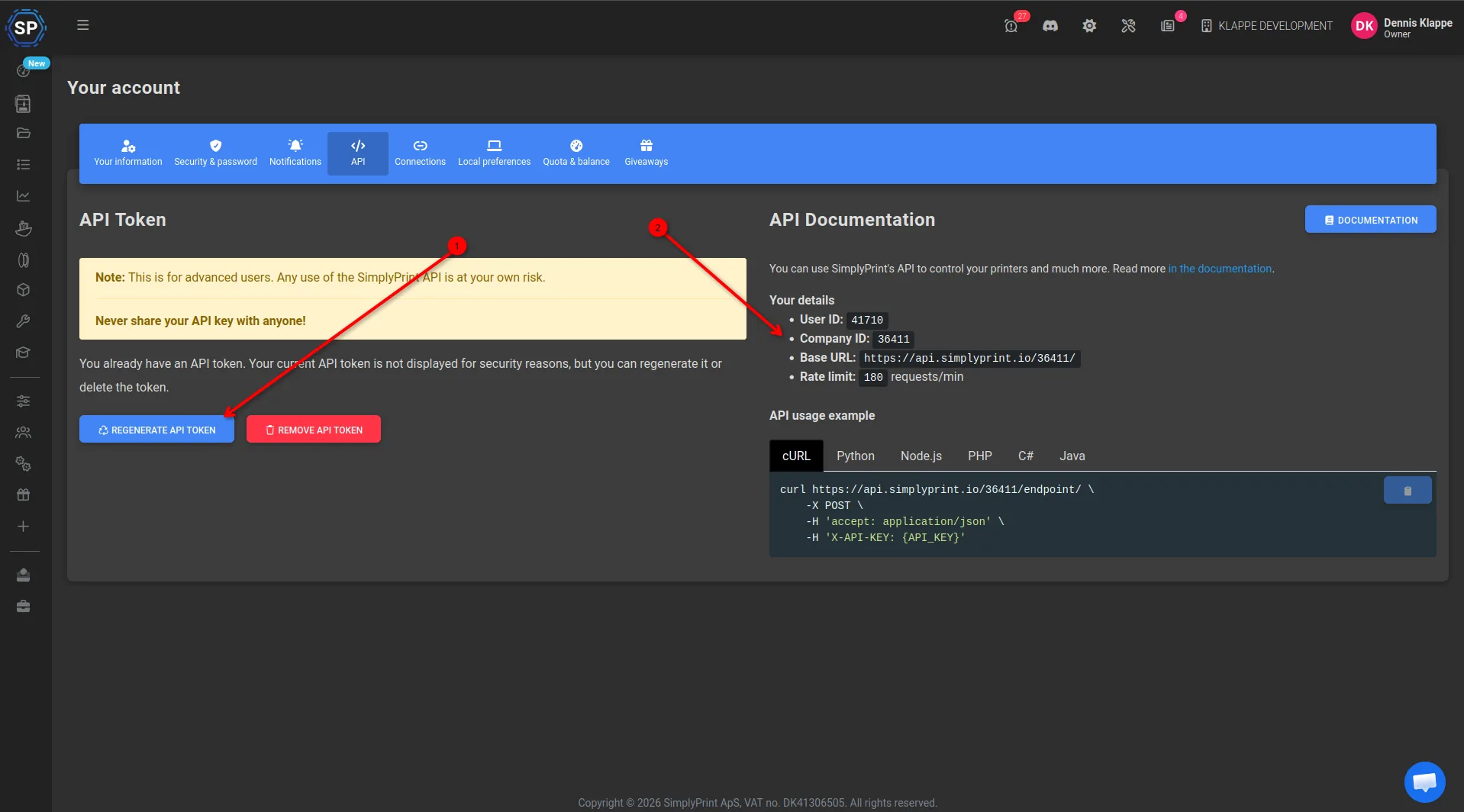
Log in to SimplyPrint and go to your account, API tab. Both values you need are on this one page.
Or go straight to https://simplyprint.io/panel/user_settings/api
- 02
Generate your API key
Click Regenerate API token and copy the key that appears. Note: if you already had a key, the old one stops working right then. If you used it elsewhere, replace it there too.
- 03
Copy your Company ID
On the right of the same page, under Your details, you will find your Company ID. It is a number a few digits long, for example 36411. Copy that number, not your User ID and not the whole Base URL.
- 04
Enter both in Schakel
Paste the key and the Company ID into Schakel under Connections. The connection is tested right away, and once it shows green Schakel can add print jobs to your queue.
Worth knowing
- Your print files are what the connector matches on. Put the product EAN in the filename between parentheses, for example Flexi Dragon (1234567890123). Schakel then matches an ordered product to the right print file on its own.
- SimplyPrint holds one key per account. Regenerating invalidates the previous one immediately, so only do it when you really mean to replace it.
If something goes wrong
- Schakel does not accept the key.
- Usually the Company ID is the wrong number. Check that you copied the number next to Company ID and not your User ID: the two sit right under each other and look alike.
- The connector worked, but suddenly stopped.
- If a new key was generated in SimplyPrint, the one Schakel holds has expired. Generate a key and refresh it in Schakel under Connections; your connectors survive that.
- No print jobs arrive in the queue.
- Check that the ordered product is mapped to a print file. A product without a mapped file is skipped, and stays listed until you map it.
Connectors that use your SimplyPrint access
Once you hold the keys, this is where they go. Every connector below talks to SimplyPrint.
Stuck on a step?
Screens move around. If what you see does not match the screenshots, message us and we will look at it with you, and fix the page.