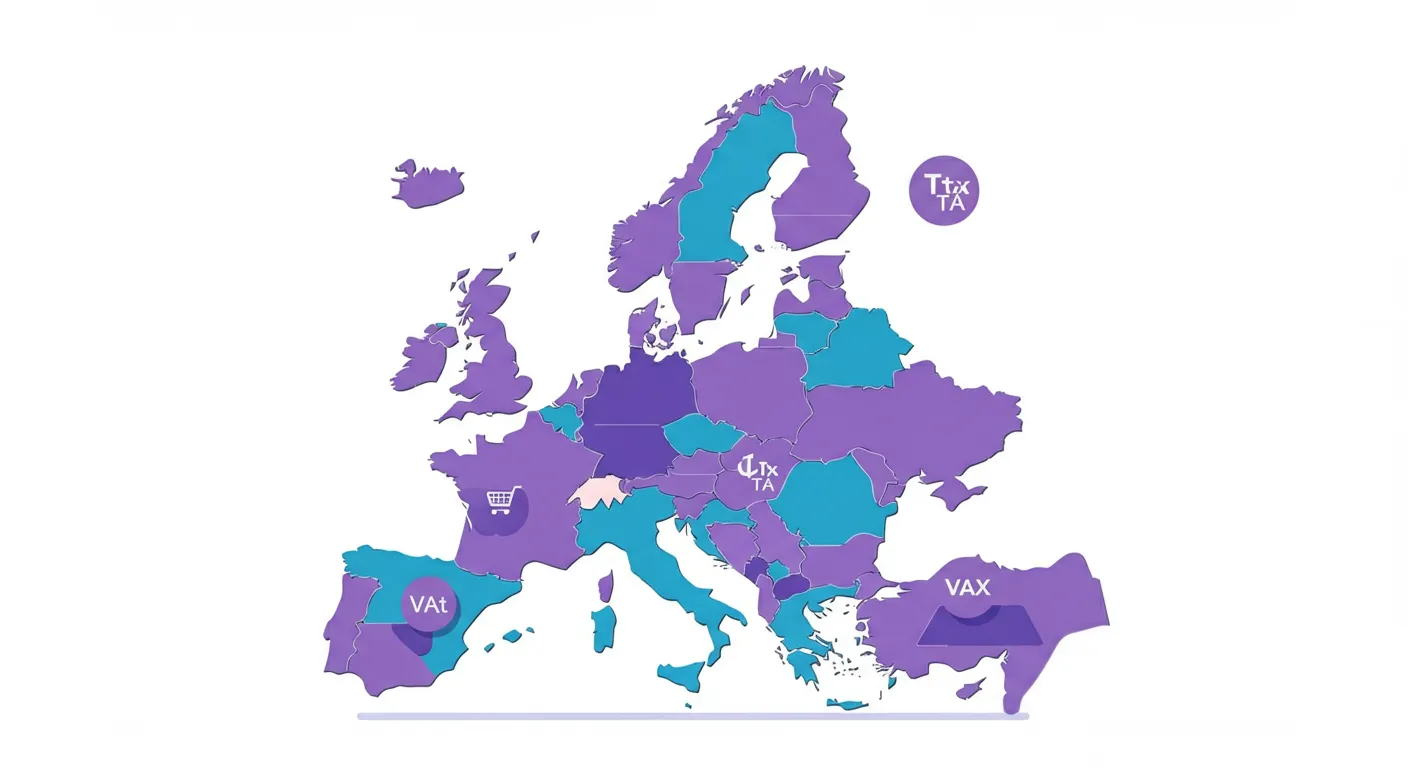
If you sell to consumers in other EU countries from your Shopify store, you are likely dealing with the One Stop Shop (OSS) scheme. Since July 2021, this regulation applies to all cross-border B2C sales within the EU. For Dutch webshop owners using Moneybird for their accounting, this introduces additional complexity. In this article, we explain how the OSS scheme works and how to correctly process it in your bookkeeping.
What is the OSS scheme?
The One Stop Shop is an EU-wide system that allows you to report and pay VAT on cross-border consumer sales through a single return in your own country. Previously, you had to register for VAT in every EU country where you exceeded the local threshold. With OSS, that is no longer necessary, as long as you register with your local tax authority.
The key rules at a glance:
- The threshold is €10,000 per year in cross-border EU sales (all countries combined)
- Above this threshold, you charge the VAT rate of the customer’s country
- You file a separate OSS return every quarter with your tax authority
- You do not need to register for VAT in each individual EU country
Why is this challenging for Shopify stores?
Shopify can automatically calculate the correct VAT rate based on the customer’s country. That part works well. The challenge lies in the bookkeeping: every sale must be recorded with the correct foreign VAT rate, on the right ledger account, and reported separately for the OSS return.
If you do this manually, it means checking the applied VAT rate for every order from another EU country, creating the invoice manually in Moneybird with the correct rate, and tracking which revenue belongs to which country. With dozens or hundreds of orders per month, this quickly becomes unmanageable.
VAT rates across EU countries
Each EU country has its own standard VAT rate. Some examples relevant to Dutch webshops:
- Germany: 19%
- Belgium: 21%
- France: 20%
- Spain: 21%
- Italy: 22%
- Austria: 20%
In Moneybird, you need to set up a separate VAT rate for each country. Then every invoice must use the rate matching the correct country. This is exactly the kind of work where automation makes all the difference.
How Schakel automates OSS accounting
Schakel automatically detects the customer’s country for every Shopify order. Based on this, the correct VAT rate is applied in Moneybird. You do not need to manually verify whether a German order received the German rate, or whether a French order is set to 20%. This all happens automatically.
Additionally, Schakel ensures that revenue per country is recorded correctly. This makes it much easier to compile your OSS return at the end of each quarter. You can simply filter by VAT rate and country in Moneybird to retrieve the totals per EU country.
Preparing the OSS return
Every quarter, you must file an OSS return with your tax authority. For this, you need the total revenue and VAT paid per EU country. When all your Shopify orders are correctly recorded in Moneybird with the right VAT rate per country, compiling this return is simply a matter of exporting the right reports.
Many accountants and bookkeepers appreciate it when the administration is already in order. By automatically syncing your Shopify orders with the correct VAT rates, you save not only your own time but also your accountant’s. That ultimately reduces your bookkeeping costs as well. Read more about automating your VAT processing for Shopify and Moneybird in our earlier article.
Common mistakes in OSS bookkeeping
In practice, we regularly see the same mistakes at webshops that process the OSS scheme manually:
Recording all EU sales at the Dutch VAT rate. This is the most common error. If you are above the €10,000 threshold, you must apply the VAT rate of the customer’s country. If you book everything at 21%, your VAT return will be incorrect and you risk additional assessments.
No separate tracking per country. For the OSS return, you need to report revenue and VAT per EU country. If you lump everything together, you cannot correctly complete the quarterly return.
Miscalculating the threshold. The €10,000 threshold applies to all EU countries combined, not per country. Many webshops think they are still below it, while the total across all countries already exceeds the threshold.
Shopify settings for OSS
To correctly use the OSS scheme, you also need to configure your Shopify store properly. Make sure that under “Settings > Taxes and duties” you have enabled the option to calculate VAT based on the customer’s country. Shopify calls this “EU Digital VAT” or displays it under EU tax settings.
It is also important that prices in your webshop are displayed including VAT. In the Netherlands and most EU countries, this is mandatory for B2C sales. Shopify can automatically adjust the price based on the country, so your gross margin remains the same regardless of the local VAT rate.
When your Shopify is correctly configured and connected to Moneybird via Schakel, all orders are automatically processed with the correct VAT rate. You can then focus on growing your webshop instead of maintaining your bookkeeping. Also read how to fully automate your Shopify accounting.
When you do not opt for OSS
The OSS scheme is voluntary. If you stay below the €10,000 threshold, you may simply charge Dutch VAT on all your EU sales. For small webshops, this can be simpler. Once you grow and exceed the threshold, the OSS scheme becomes mandatory and you must start applying foreign VAT rates.
Some webshops deliberately choose to register for OSS even below the threshold. This can be advantageous if the VAT rate in certain countries is lower than 21%. You then pay less VAT on sales to those countries.
Business customers and OSS
The OSS scheme applies only to B2C sales (to consumers). If you sell to business customers with a valid VAT number in another EU country, the regular intra-community supply (ICS) rules with reverse-charged VAT apply. These orders do not fall under OSS. Schakel can help with this too by automatically recognizing business customers and applying the correct invoicing.
The rules and the 10,000 euro threshold in one place, with Belastingdienst sources, are on OSS and VAT on EU sales for webshops.
Want this handled automatically? Pick your connector.
Back to the blog